How to set a weekly running schedule for a Microsoft 365 Email (Outlook) scenario in Make
Here is how to set a weekly running schedule for a microsoft 365 email (outlook) scenario in make
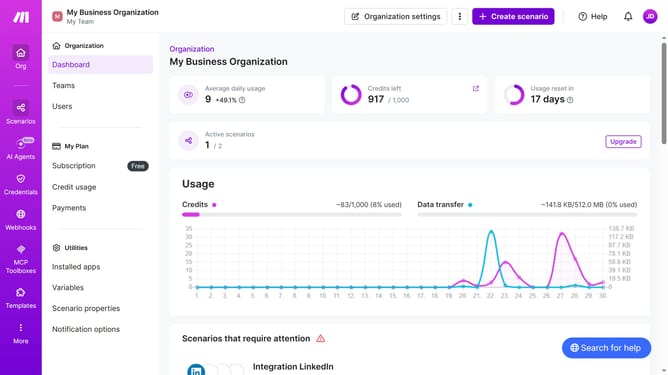
- First click on the "Scenarios" item in the left sidebar.
- Then click on the Microsoft 365 Email (Outlook) scenario in the main content area
- Next, click on the "Options" button dropdown
- Then select the "Scheduling" option from the dropdown menu
- Click on the dropdown for "Run scenario"
- Then select "Weekly" from the dropdown option
- Then click on the dropdown for "Days"
- Next, select a checkbox from the list of days
- Finally, click on the "Save" button in the "Schedule settings" modal
Why should you set a weekly running schedule for a Microsoft 365 Email (Outlook) scenario in Make
Make simplifies automation by empowering users to connect and automate anything, regardless of complexity.
Setting a weekly running schedule for a Microsoft 365 Email scenario in Make streamlines your workflow efficiently. This feature allows customized timing for emails, ensuring that your communication is timely and consistent.
Automation through Make boosts productivity by handling repetitive tasks, letting you focus on more critical activities, and offering peace of mind through reliable scheduling.
By using Make, teams can enhance efficiency, reduce manual errors, and improve overall communication strategies seamlessly.
Last update