How to delete additional time for a weekday running schedule for Mailchimp scenario in Make
Here is how to delete additional time for a weekday running schedule for mailchimp scenario in make
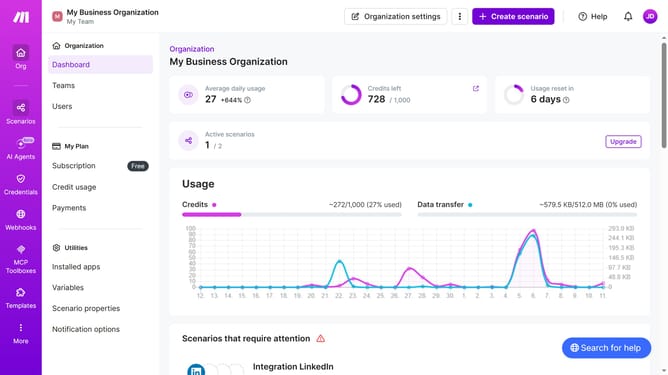
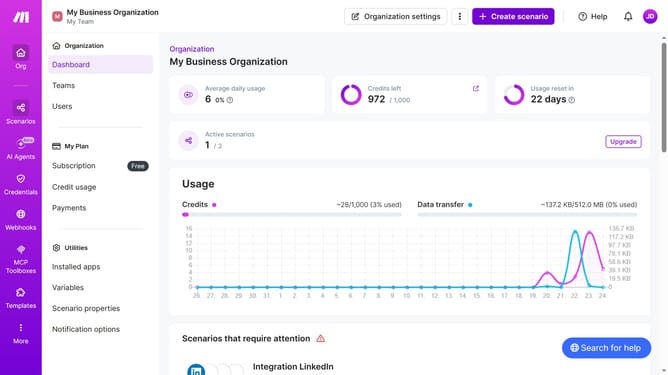
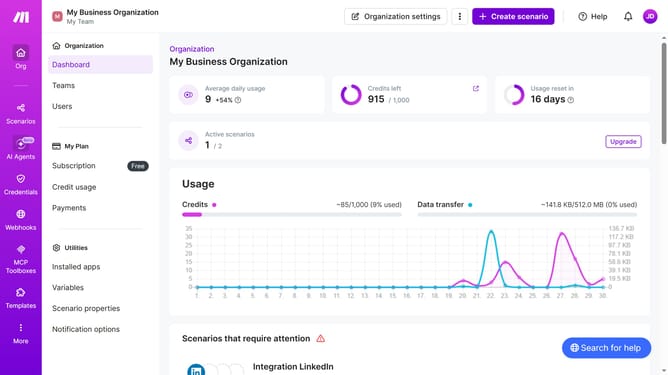
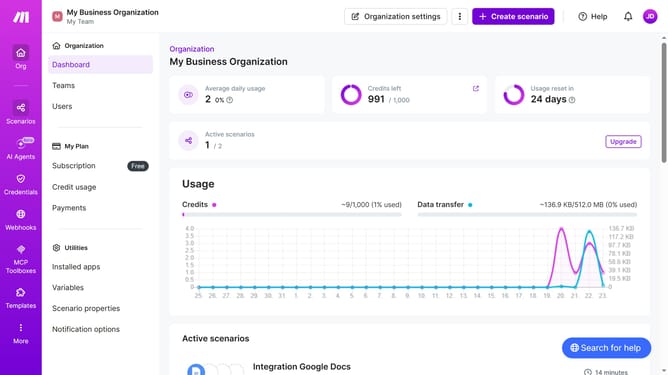
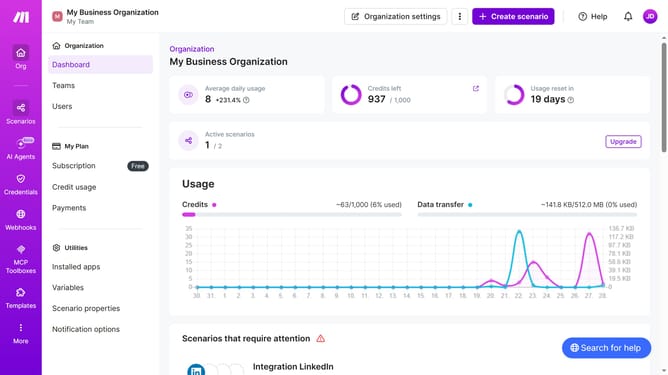
- First, click on "Scenarios" in the left sidebar
- Then, click on the "Integration Mailchimp" scenario
- Next, click on the "Options" dropdown
- After that, select "Scheduling" from the dropdown menu
- Then, click the close button next to the time you want to delete
- Finally, click the "Save" button
Why should you delete additional time for a weekday running schedule for Mailchimp scenario in Make
Make is a powerful platform designed to automate and streamline workflows efficiently.
The ability to delete additional times for a weekday running schedule in a Mailchimp scenario on Make enhances user control and precision in managing their automated campaigns.
By removing unnecessary times, users can optimize their schedule, ensuring emails are sent at focused moments that maximize impact and avoid redundancy.
This not only refines the workflow but also contributes to effective time management and resource allocation, ultimately boosting productivity and campaign success.
Last update