How to set time for a weekday running schedule for Microsoft 365 Email (Outlook) scenario in Make
Here is how to set time for a weekday running schedule for microsoft 365 email (outlook) scenario in make
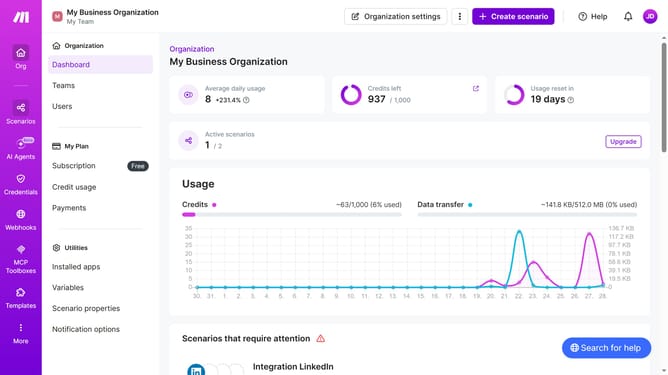
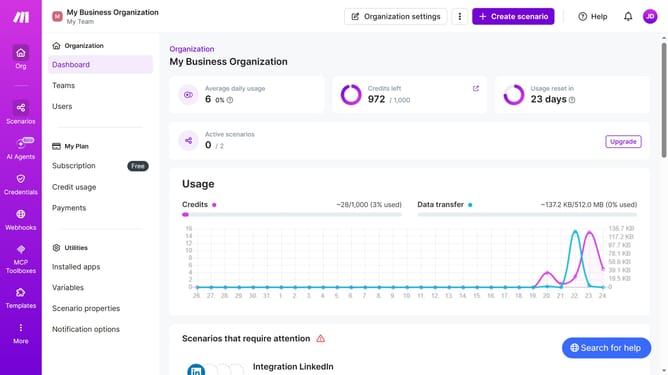
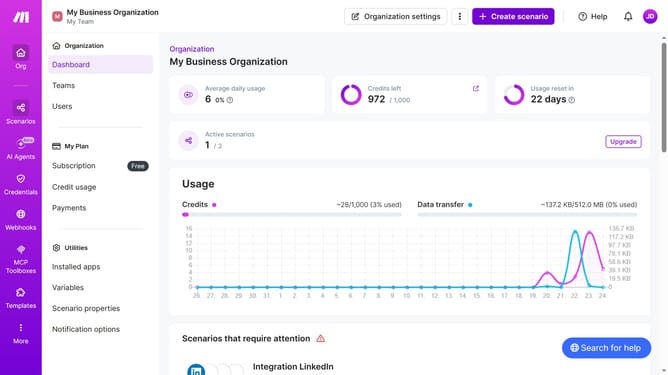
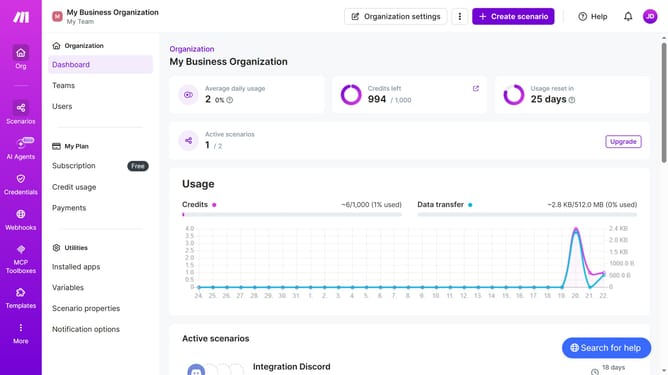
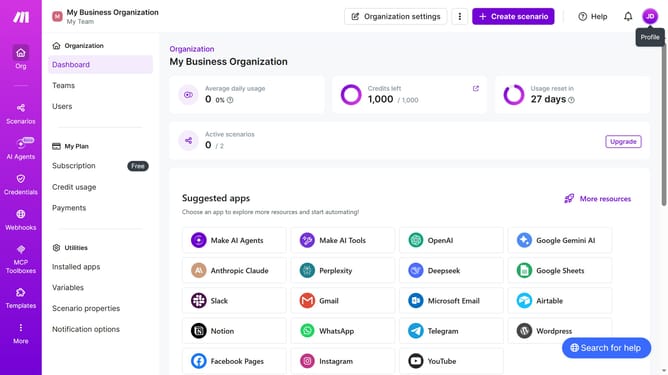
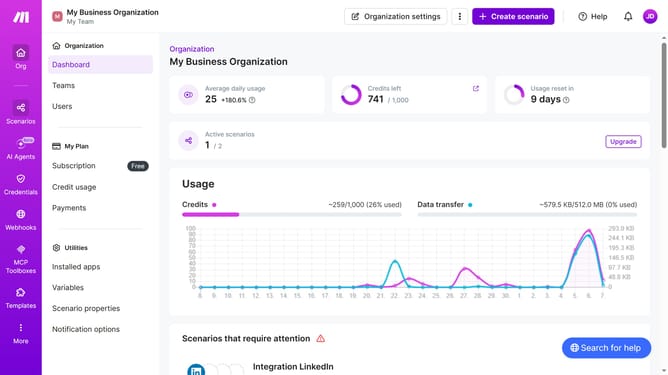
- First click on the "Scenarios" item in the side navigation bar
- Then click on the "Microsoft 365 Email (Outlook)" scenario
- Click on the "Options" button in the top action bar
- Select "Scheduling" from the dropdown menu
- Click on the time input field and enter your preferred time
- Finally click on the "Save" button in the schedule settings modal
Why should you set time for a weekday running schedule for Microsoft 365 Email (Outlook) scenario in Make
Make is a powerful automation platform designed to connect and streamline your apps and services seamlessly.
By setting a weekday running schedule for your Microsoft 365 Email (Outlook) scenario in Make, you can ensure that essential emails are sent and workflows remain active precisely when needed. This brings consistency and predictability to your business processes.
Automating time-specific tasks saves valuable time, reduces human error, and enhances productivity, making your workday more efficient and stress-free.
Last update