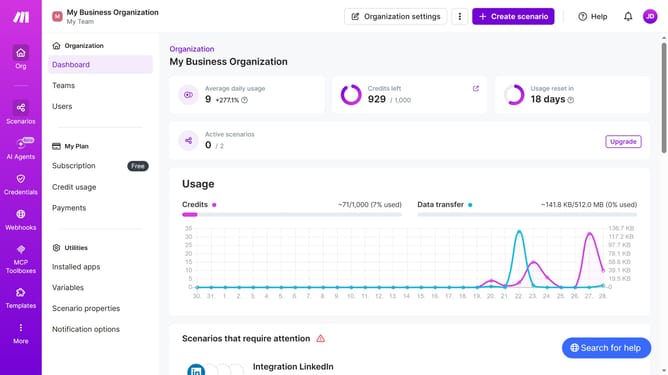
How to manage a one-time running schedule for a Discord scenario in Make
Here is how to manage a one-time running schedule for a discord scenario in make
- First, click on the "Scenarios" item in the left sidebar
- Then, click on the Discord scenario in the main content area
- Next, click on the "Edit" button in the header
- In the displayed panel, click on the "Custom schedule" to show more schedule options
- Then, click on the "Run scenario" dropdown in the "Schedule settings" dialog
- Select "Once" from the dropdown menu
- Click on the date field and enter your preferred date and time
- Then click on the "Save" button in the "Schedule settings" dialog
- Finally, click on the "Save" button to save changes
Why should you manage a one-time running schedule for a Discord scenario in Make
Make is a versatile automation platform that streamlines tasks and workflows effortlessly.
When managing a one-time running schedule for a Discord scenario, Make offers precision and convenience that stands out. This feature allows users to execute automated tasks for specific events or campaigns without the need for ongoing management.
Utilizing this feature saves time and reduces the chance of human error. The flexibility of Make ensures that every Discord interaction is timely and relevant, enhancing the overall user experience and effectiveness of your digital communication strategy.
Last update