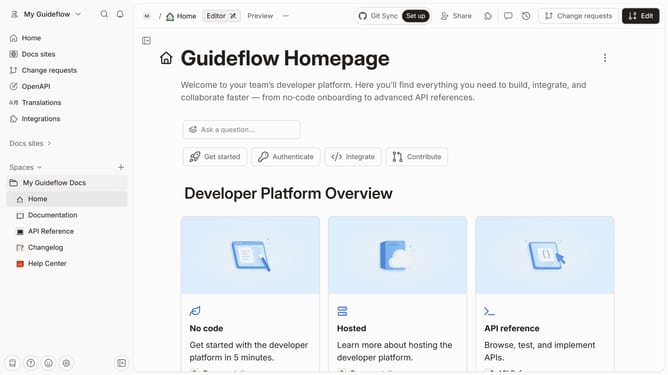
How to resize image in help center in Gitbook
Here is how to resize image in help center in gitbook
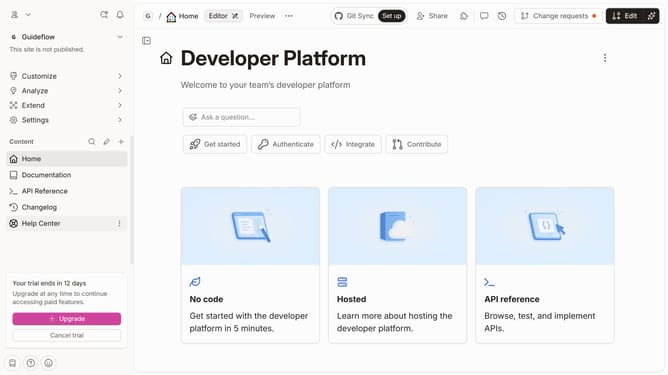
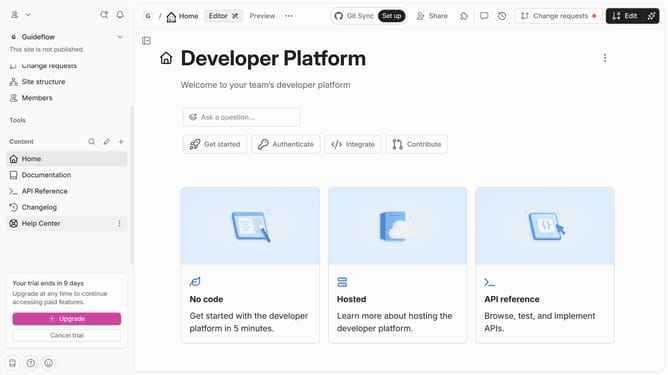
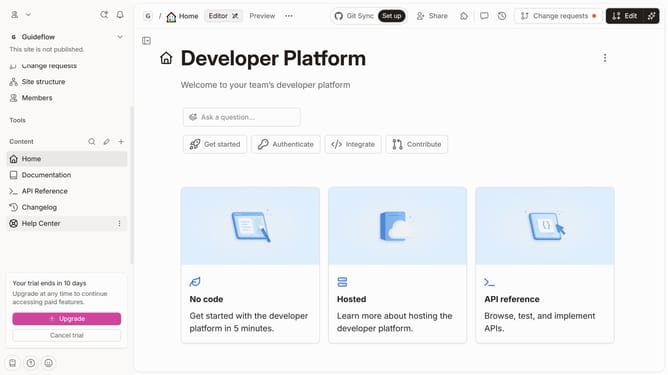
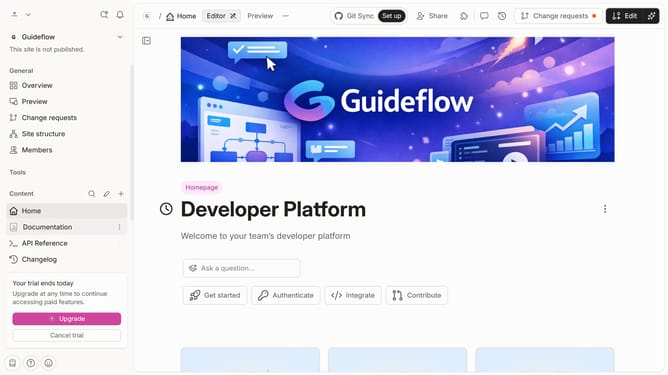
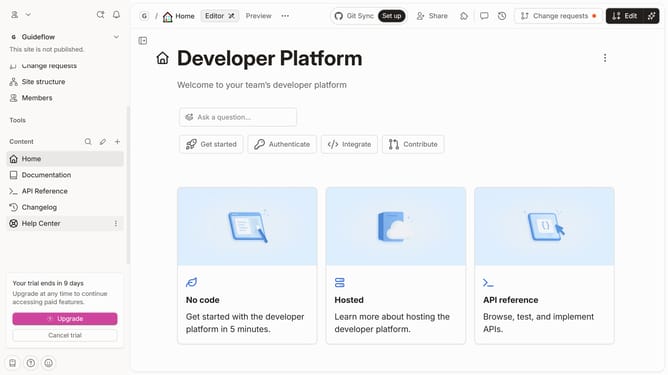
- First click on "Help Center" in the sidebar navigation
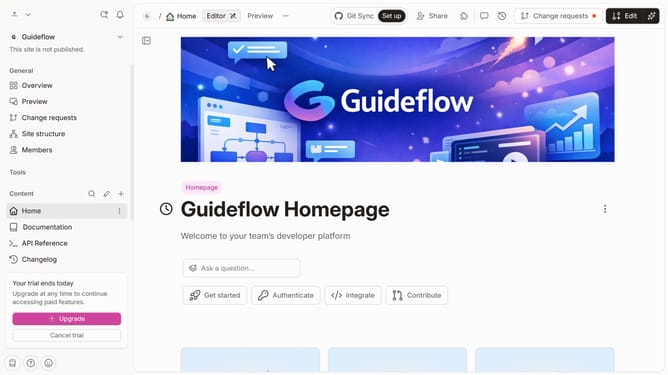
- Then click on the "Edit" button in the top header menu
- Next click on the "pencil" icon to edit the content
- Click on the "Size" dropdown in the editing toolbar
- Then select from the size options
- Finally click on the "Merge" button in the top header menu
Why should you resize image in help center in Gitbook
Gitbook is a powerful platform designed to streamline documentation for teams and creators.
Resizing images in the Gitbook help center is an intuitive feature that enhances the visual clarity of your content. This ability allows users to customize the size of images, ensuring that they fit perfectly within their documentation layout.
Adjusting image dimensions leads to a more consistent presentation, which helps readers focus and absorb information more efficiently. Ultimately, this feature supports the creation of polished, professional-looking documents that cater to an audience’s visual expectations seamlessly.
Last update