How to reopen a board in Trello
Here is how to reopen a board in trello
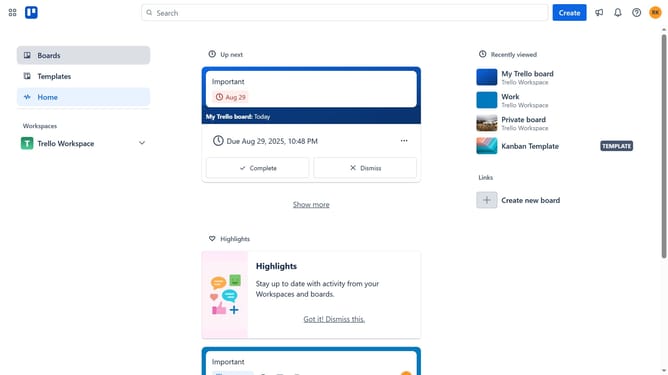
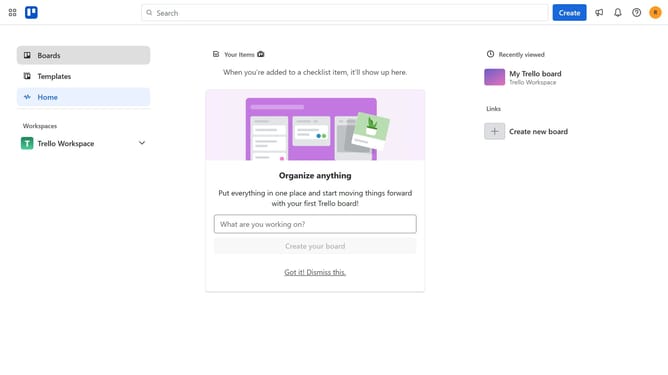
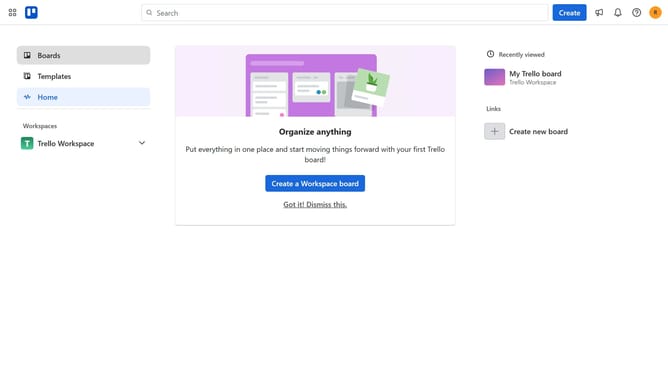
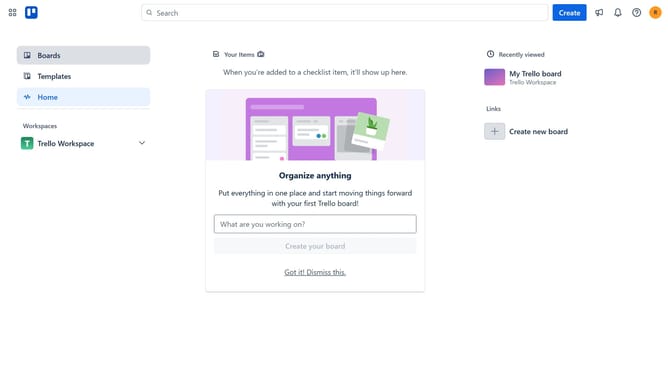
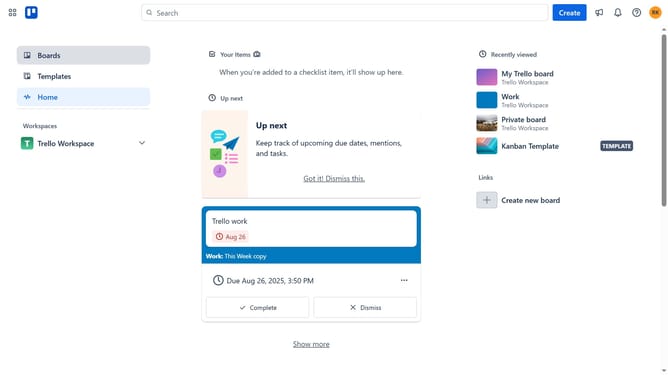
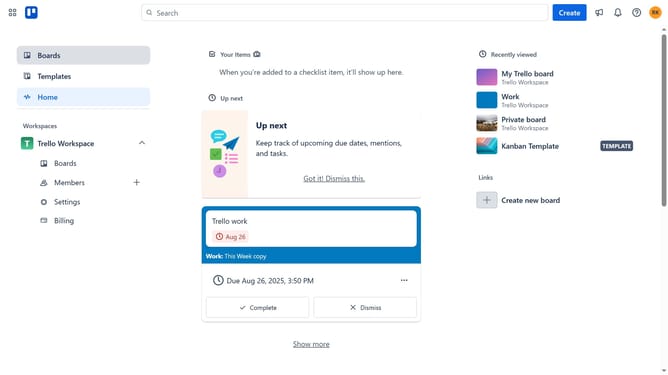
- First click on the "Boards" option in the left sidebar menu
- Then click on "View all closed boards" link at the bottom of the workspace section
- Next click on the "Reopen" button next to the board you want to reopen in the closed boards modal
- In the workspace selection dropdown, click on the dropdown arrow to expand options
- Select the workplace from the dropdown list where you want to reopen the board
- Finally click the "Reopen board" button to restore the closed board
Why should you reopen a board in Trello
Trello is a dynamic project management tool that helps teams organize tasks visually.
The feature to reopen a board in Trello adds flexibility and adaptability to your workflow. It allows users to revive boards that were previously closed, regaining access to all tasks, lists, and cards.
This capability ensures that no crucial information is permanently lost, allowing teams to revisit and leverage past projects for inspiration or reference.
By reopening a board, teams can seamlessly resume collaboration on essential tasks without starting from scratch.
Last update