How to put text over an image in Webflow?
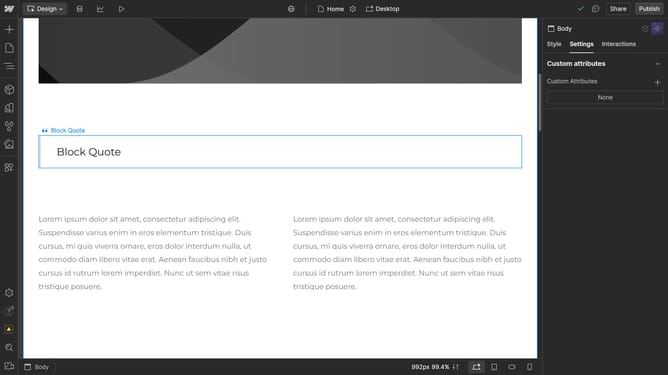
Here is how to put text over an image in webflow
- First, select the section where you want to add text
- Next, go to the Backgrounds panel and click the "+" button beside the image and gradient options
- Then click on “Choose Image” and upload one
- You can also select an image from your assets
- Modify the size and position of the image as needed
- Your text now appears over the selected background image
Why should you put text over an image in Webflow?
Webflow is a cutting-edge visual web design tool that empowers anyone to create beautiful websites without extensive coding knowledge.
Placing text over an image in Webflow allows you to enhance your design's visual storytelling by seamlessly integrating engaging text with striking imagery. This feature enables designers to effortlessly create dynamic layouts that capture attention and convey information effectively.
Utilizing this capability maximizes your content's impact, improving user engagement and ensuring your site stands out amidst the digital noise. Using Webflow, you can craft a sophisticated, cohesive aesthetic effortlessly.
Last update