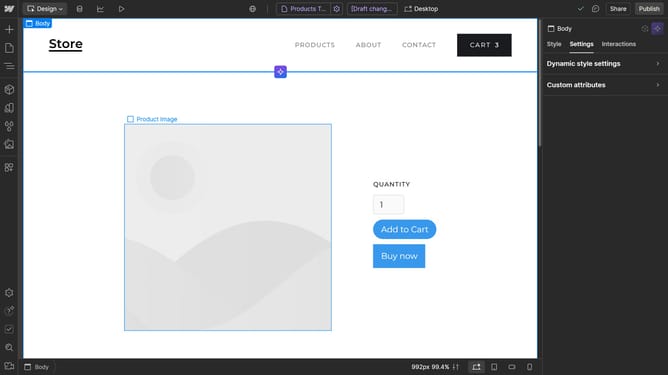
How to change the positioning to Relative in Webflow
Here is how to change the positioning to relative in webflow
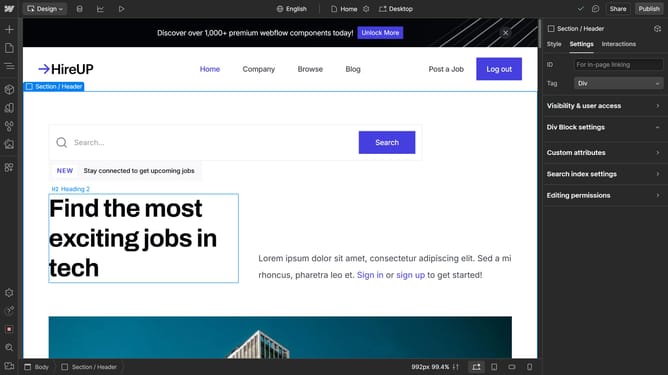
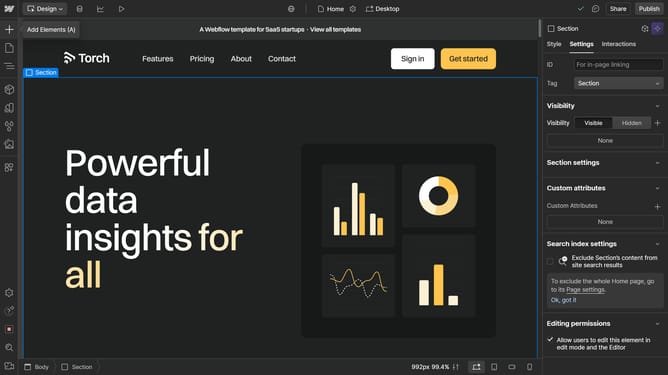
- First click on the element you want to reposition
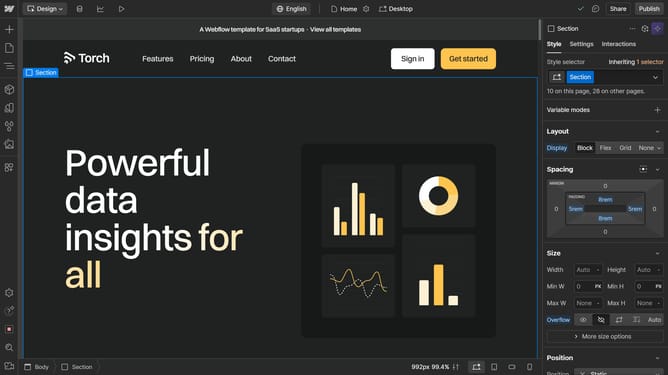
- Then in the right sidebar, click on the "Position" settings panel to expand it
- Next click th Position dropdown menu in the right sidebar
- Finally click on "Relative" option in the Position dropdown menu to change the positioning type
Why should you change the positioning to Relative in Webflow
Webflow is a powerful web design tool that brings the power of visual development to your fingertips.
Changing the positioning to Relative in Webflow gives you enhanced flexibility in laying out your designs. This feature allows elements to move in relation to their original position in the document flow.
Utilizing Relative positioning can help maintain the natural flow of your content, which can enhance the overall user experience. It gives you control to creatively stack or overlap your design elements without disrupting the surrounding layout.
With Relative positioning, your designs remain fluid and adaptable, ensuring a seamless display across different devices and screen sizes.
Last update