How to change the fallback font in Webflow
Here is how to change the fallback font in webflow
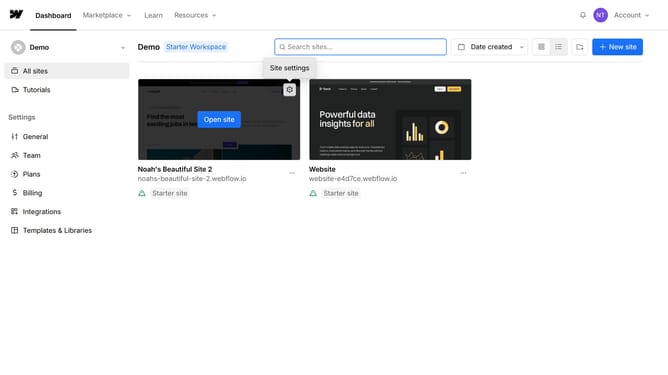
- First click on "Site settings" in the left sidebar menu
- Then click on "Fonts" in the left sidebar menu
- Next click on "Edit" button in the installed fonts section
- Click on the dropdown menu labeled "Falls back to"
- Select the desired font from the fallback font dropdown options
- Finally click the "Save" button to apply the font fallback changes
Why should you change the fallback font in Webflow
Webflow is a versatile design tool that empowers creators to build visually stunning websites with ease and flexibility.
Changing the fallback font is a subtle yet essential feature within Webflow, ensuring that your website maintains its aesthetic even when custom fonts fail to load.
By customizing the fallback option, you preserve the visual integrity and user experience, retaining the intended look and feel of your brand.
This contributes positively to both the professionalism and accessibility of your site, keeping it consistent across different browsers and devices.
Last update