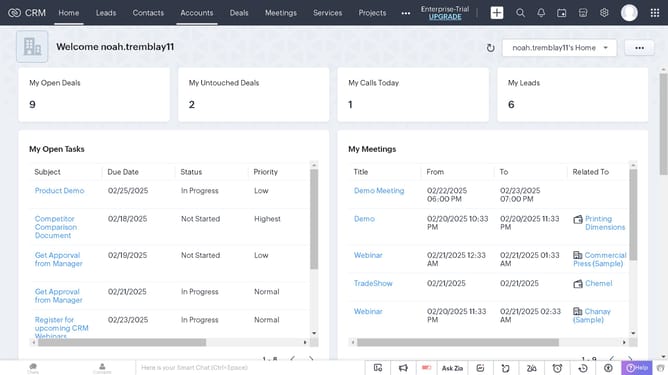
How to print an invoice on Zoho CRM
Here is how to print an invoice on zoho crm
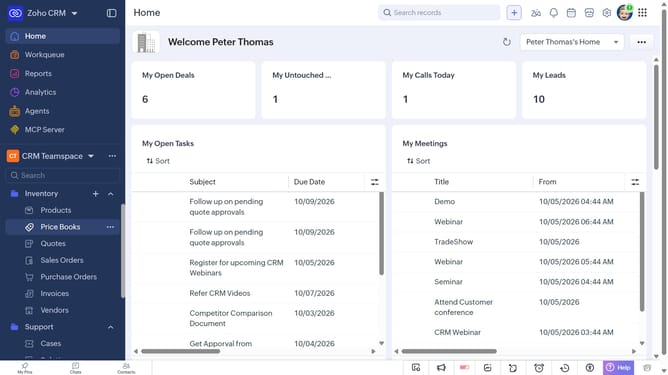
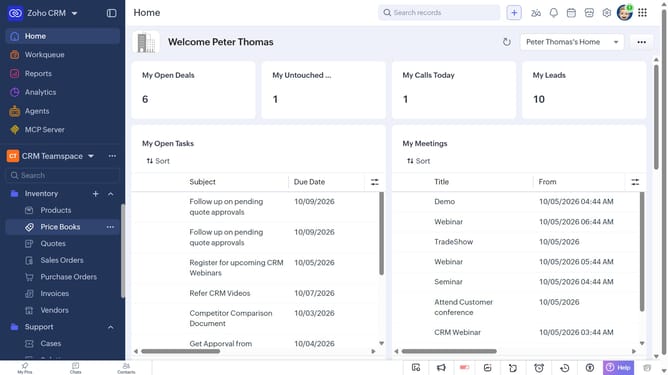
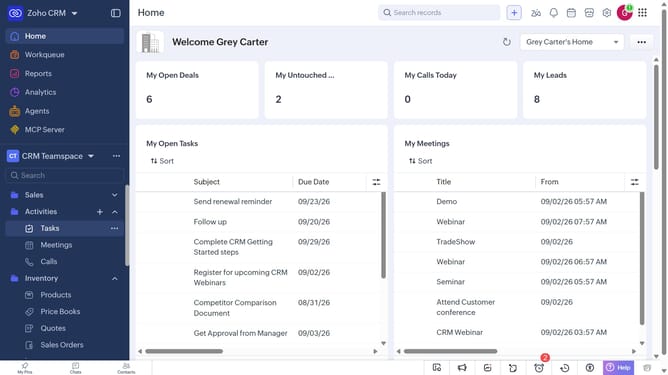
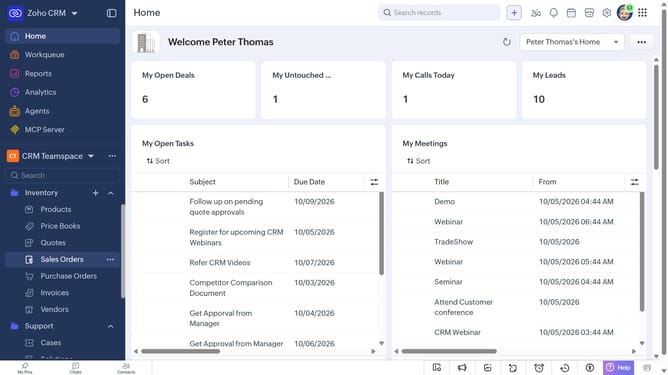
- First, click on "Invoices" under "Inventory" in the left sidebar menu
- Next, click on the invoice you want to print
- Click on the "More options" button in the top right corner
- Select "Print Preview" from the dropdown menu
- Next, click the "Choose an Inventory Template" dropdown
- Select a template from the dropdown menu
- Then, choose to view the invoice as HTML or PDF
- Finally, click on the "Print" button
Why should you How to print an invoice on Zoho CRM
Zoho CRM is a powerful platform designed to streamline your business processes and enhance customer relationships.
One of the standout features of Zoho CRM is the ability to easily print invoices. This feature ensures you can quickly access and produce physical copies of invoices, making transaction tracking seamless and organized.
Printing invoices in Zoho CRM is not just about convenience; it ensures accuracy and helps maintain professionalism in client interactions. This feature supports efficient business operations by providing a straightforward way to document sales and manage billing needs.
Last update