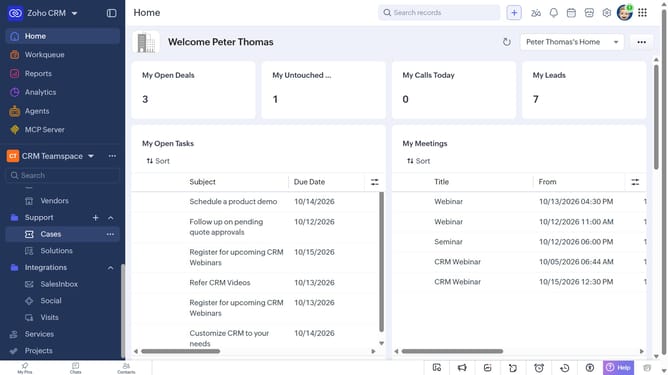
How to export tasks as a CSV file on Zoho CRM
Here is how to export tasks as a csv file on zoho crm
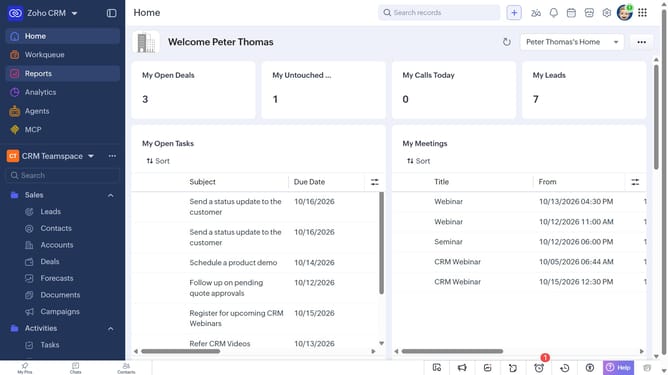
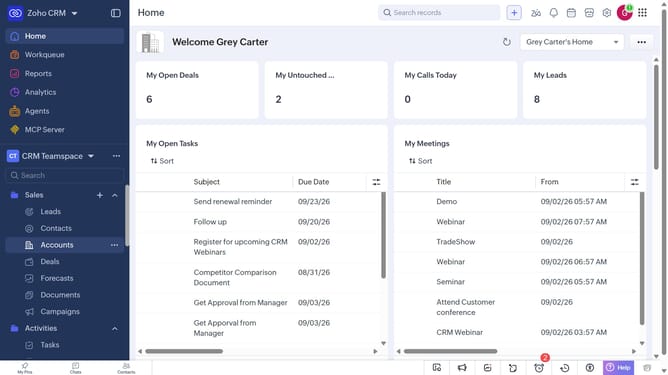
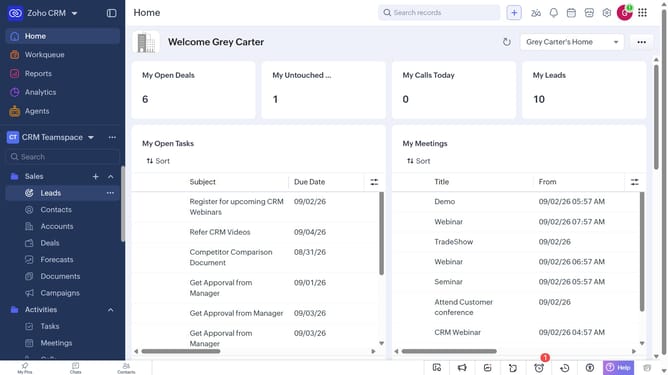
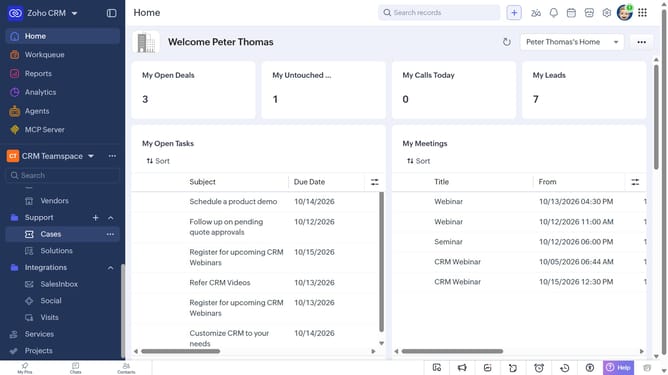
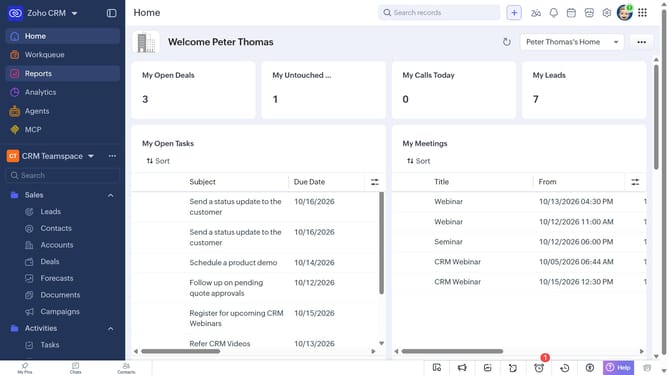
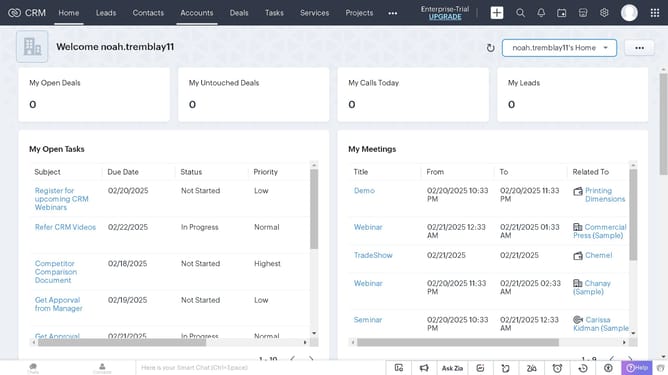
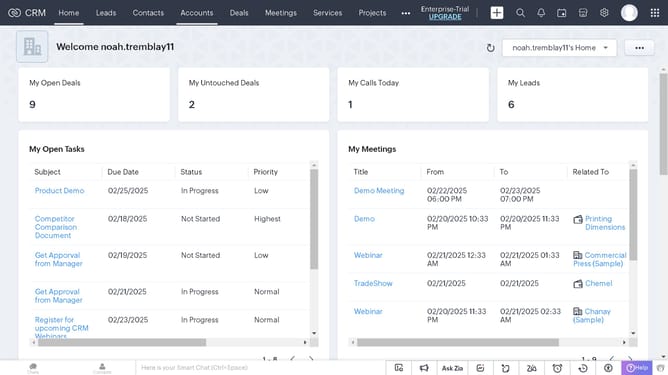
- First, click on "Tasks" in the left sidebar menu
- Next, click on the "More Options" button at the top of the Tasks list
- Select "Export Tasks" from the dropdown menu
- In the "Export Tasks" dialog, click on the "Fields to Export" dropdown
- Choose whether to export all fields or only the fields from custom view
- After that, select "CSV" as the file type
- Next, click on the "Charset" dropdown and select the desired encoding
- Then, toggle the "Set Password" switch on or leave it off
- Finally, click on the "Export" button
Why should you How to export tasks as a CSV file on Zoho CRM
Zoho CRM is a powerful tool designed to manage your customer relationships efficiently, empowering businesses with seamless automation and insights.
One standout feature of Zoho CRM is the ability to export tasks as a CSV file. This functionality ensures you can transfer and organize your data effortlessly for analysis or reporting purposes. By exporting tasks, users gain flexibility in creating custom reports, integrating with other software, and making data-driven decisions.
This feature is advantageous for teams collaborating across platforms, as it ensures everyone has access to consistent and structured information. Exporting tasks enhances productivity, allowing for seamless workflow management and strategic planning.
Last update