How to use a space as the number grouping separator on Zoho CRM
Here is how to use a space as the number grouping separator on zoho crm
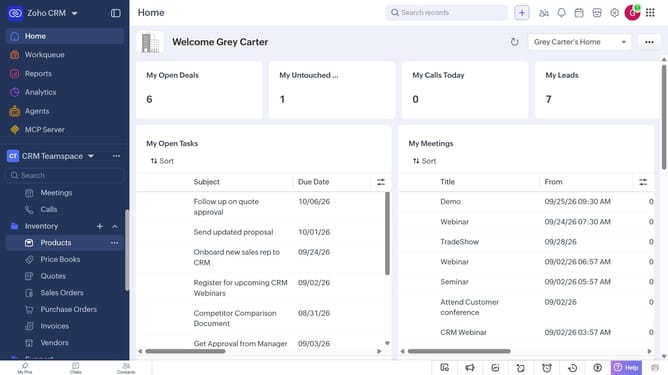
- First click on the settings icon in the top right corner
- Click on "Personal Settings" under the "General" section
- Next, click on the pencil icon next to "Locale information"
- After that, click on the "Grouping" dropdown under "Number Format" section
- Then, select "Space" from the dropdown menu
- Finally click on the "Save" button
Why should you How to use a space as the number grouping separator on Zoho CRM
Zoho CRM is a dynamic platform designed to streamline business operations and enhance customer interactions.
Using a space as the number grouping separator in Zoho CRM can greatly enhance readability, making numbers easier to interpret at a glance. This feature is particularly beneficial for teams working with extensive data sets, ensuring accurate data analysis and reporting.
Consistently formatted numbers provide a professional appearance and reduce errors during data entry and collaboration. By implementing space-separated grouping, Zoho CRM users enjoy a seamless experience, promoting efficiency across your organization.
Last update