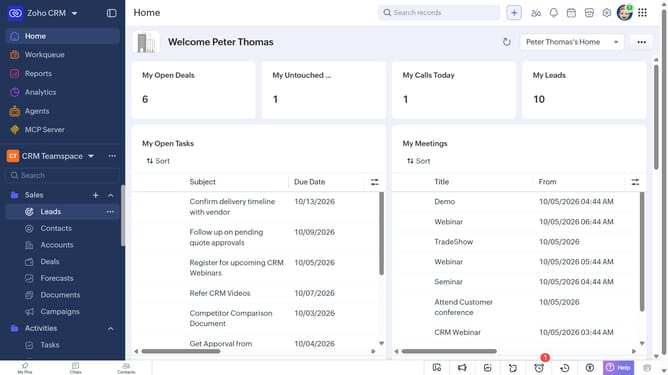
How to print a quote on Zoho CRM
Here is how to print a quote on zoho crm
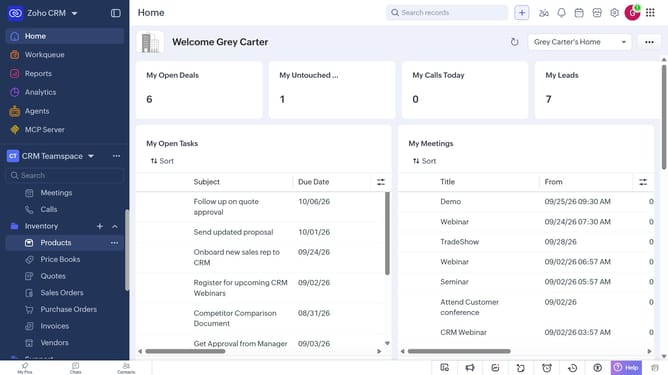
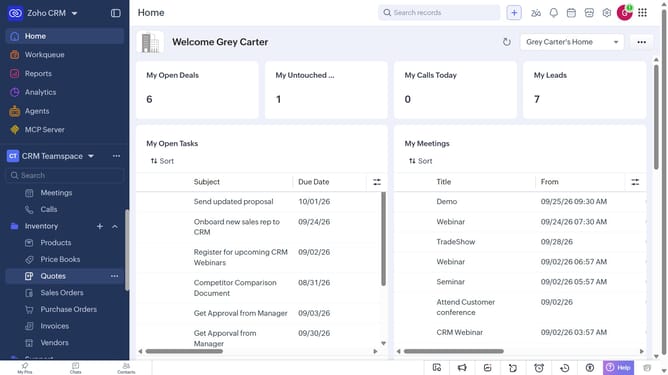
- First, click on "Quotes" under the "Inventory" section in the left sidebar menu
- Next, click on the quote you want to print
- After that, click on the "More Options" button
- Select "Print Preview" from the dropdown menu
- In the "Print Preview" page, click on the "Choose a Template Category" dropdown and select the appropriate category
- Next, click on the "Choose an Inventory Template" dropdown and select the desired template
- Then, choose to view the quote as HTML or PDF
- Finally, click on the "Print" button
Why should you How to print a quote on Zoho CRM
Zoho is a leading cloud-based software suite designed for enhancing your business productivity and management.
Printing a quote in Zoho CRM is seamless, allowing you to generate professional, consistent, and tailored proposals effortlessly.
This feature ensures you can present your offers clearly, impressing clients and streamlining your sales process.
By utilizing this capability, you not only enhance accuracy but also save time, keeping a flawless record of your interactions and reducing follow-up errors.
Last update