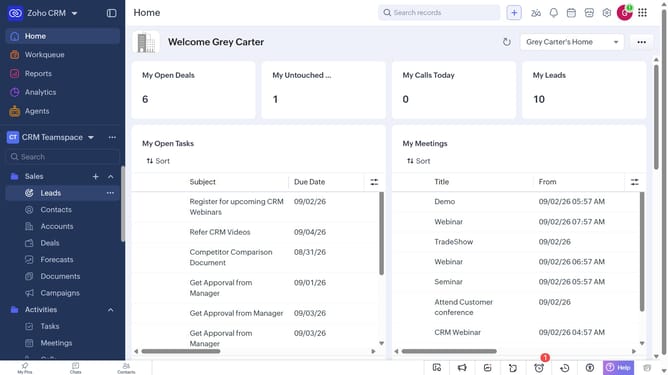
How to print a lead on Zoho CRM
Here is how to print a lead on zoho crm
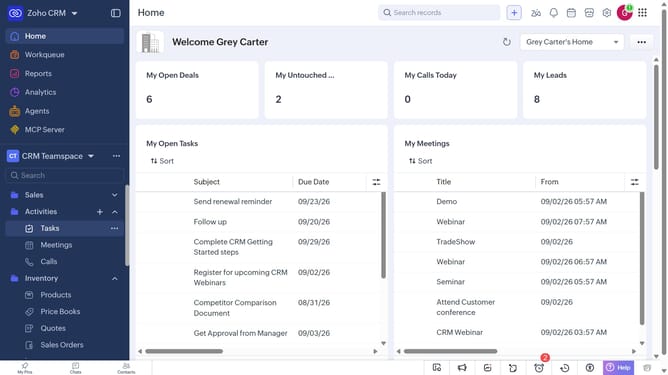
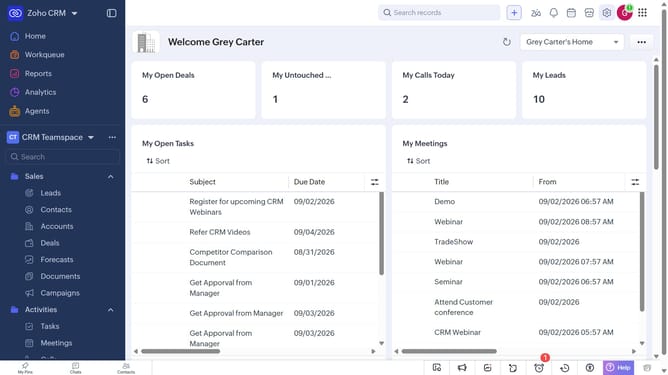
- First click on "Leads" in the left sidebar menu
- Next, click on the lead you want to preview to open its detail page
- Click on the "More options"(three dots) button in the top right corner
- Select "Print Preview" from the dropdown menu
- Then, review the lead details in the print preview
- Next, click on the "Print" button
- Finally, choose your printer settings and confirm to print
Why should you How to print a lead on Zoho CRM
Zoho CRM is an intuitive platform designed to streamline customer relationship management for businesses of all sizes.
Printing a lead in Zoho CRM is a seamless feature that allows you to have a tangible record of your prospective clients. It’s beneficial for professionals who prefer analyzing information offline or need hard copies for meetings and presentations.
This feature ensures you never miss crucial details, offering an easy way to share lead information with team members, strengthening collaboration. By utilizing this, you maintain organized records and enhance decision-making processes.
Last update