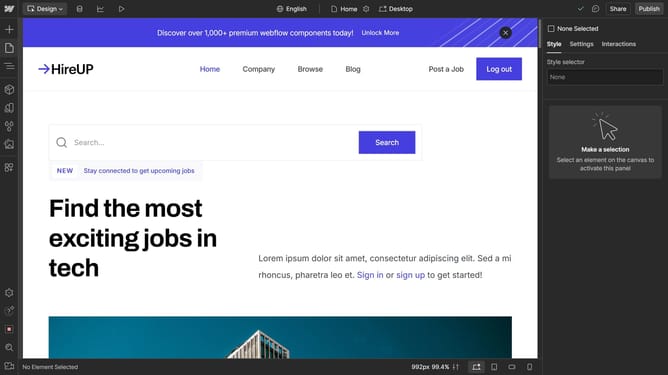
How to play a part of the animation on page load in Webflow
Here is how to play a part of the animation on page load in webflow
- First, click on the "Lottie Animation" block in the page layout
- Then click the "Interactions" tab in the right sidebar
- Click the “plus” icon next to Page trigger
- Select "Page load" from the page trigger options
- Click "Select an action..." dropdown in the When page starts loading section
- Choose "Start an animation" from the action dropdown menu
- Click the "+" button to add a new timed animation
- Name your animation
- Click the “plus” next to Actions
- Select "Lottie" from the Integrations menu in the Actions panel
- Finally click "Save"
Why should you play a part of the animation on page load in Webflow
Webflow empowers designers to build professional websites without coding.
Playing a part of the animation on page load in Webflow can capture attention instantly. This feature allows you to direct the viewer's gaze and highlight crucial messages or visuals right from the start.
By focusing animations on specific elements, you enhance user engagement and provide a dynamic, memorable experience. Strategically timed animations can make your content more effective by conveying the story you want your audience to grasp immediately upon arrival.
Last update