How to move an existing inbox channel to Help Desk in HubSpot
Here is how to move an existing inbox channel to help desk in hubspot
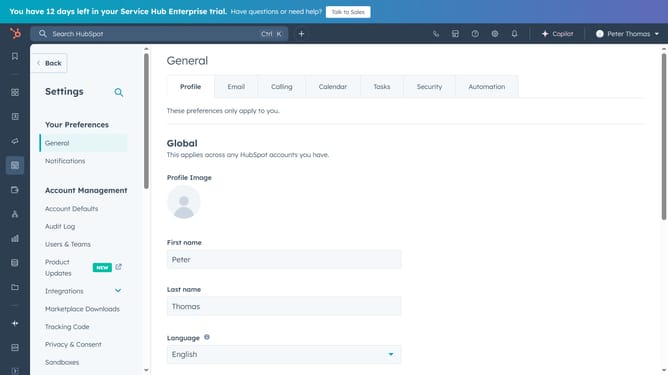
- First click on the settings icon in the top navigation bar
- Then click on the "Inbox & Help Desk" option in the left sidebar menu
- Next select "Inboxes" from the expanded menu items
- Hover over the email, calling, or form channel you want to move and click "Options" dropdown menu
- Select "Move to help desk" from the dropdown options
- Next, select your preference for moving historical conversations: either "Leave all conversations in the inbox"
- Or "Move all conversations with [Inbox Address]" and configure the settings accordingly
- Click on the "Move channel and conversations" button at the bottom once ready
- The migration is now in process, click "Go to help desk settings" button
- Select "Channels" from the Help Desk Settings menu
- The inbox channel has successfully been migrated
Why should you move an existing inbox channel to Help Desk in HubSpot
HubSpot is a dynamic platform designed to elevate marketing, sales, and customer service strategies through seamless integration and efficiency.
Moving an existing inbox channel to the Help Desk in HubSpot streamlines your customer support capabilities by centralizing communications. This feature enables teams to manage inquiries effectively, ensuring no query is overlooked.
By consolidating your inbox channel within HubSpot’s Help Desk, customer interactions become more organized and responsive, which enhances overall service quality and satisfaction.
Last update