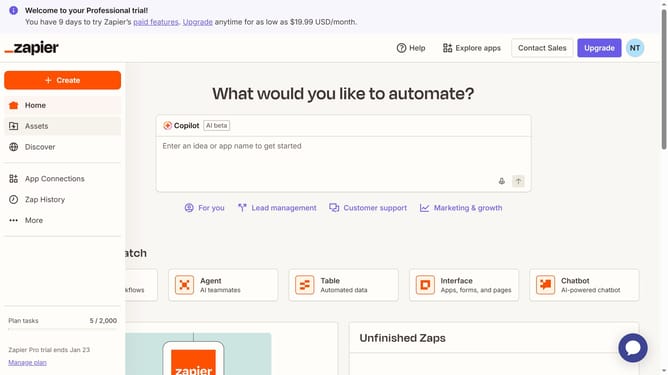
How to move a canvas file into a folder in Zapier
Here is how to move a canvas file into a folder in zapier
- First click on "Assets" in the left sidebar
- Then click on "Canvases" in the left sidebar menu
- Next click on the three-dot menu button for canvas that you want to move in the actions column
- Then click on "Move to folder" option from the dropdown menu
- Next click on the folder in the folder selection dialog
- Finally click on "Move to folder" button to confirm the action
Why should you move a canvas file into a folder in Zapier
Zapier is a dynamic tool that seamlessly connects your favorite apps to automate tasks and boost productivity.
Moving a canvas file into a folder in Zapier optimizes your workflow by keeping your projects organized and easy to access.
This feature supports efficient project management, allowing you to quickly retrieve and manage files without the clutter.
By leveraging this capability, teams can collaborate more effectively, reducing time spent on file searches and enhancing overall productivity.
Last update