How to manage the font size of legends in a pie chart in Looker Studio
Here is how to manage the font size of legends in a pie chart in looker studio
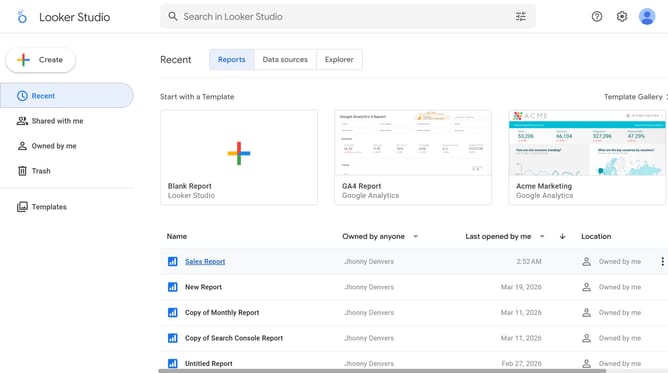
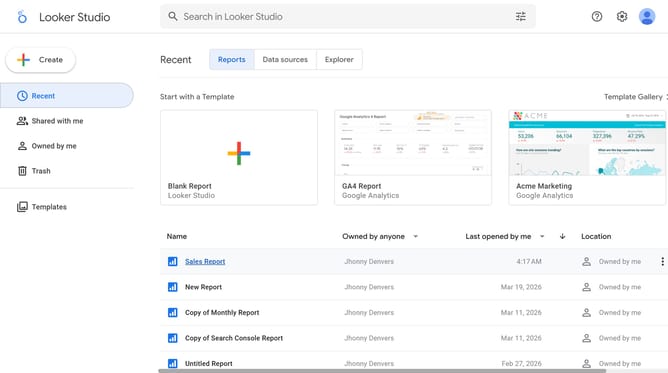
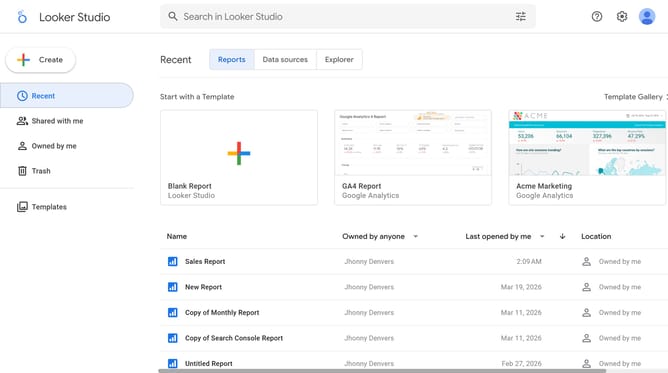
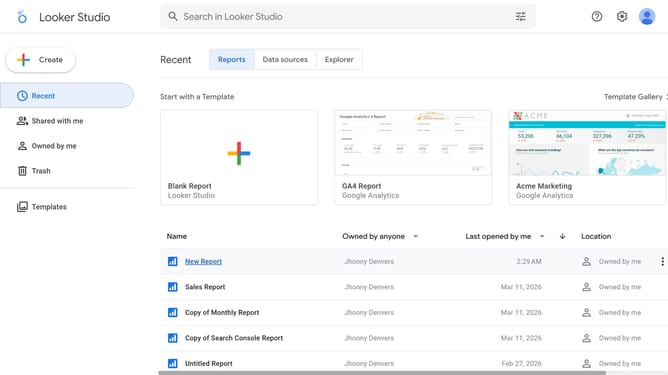
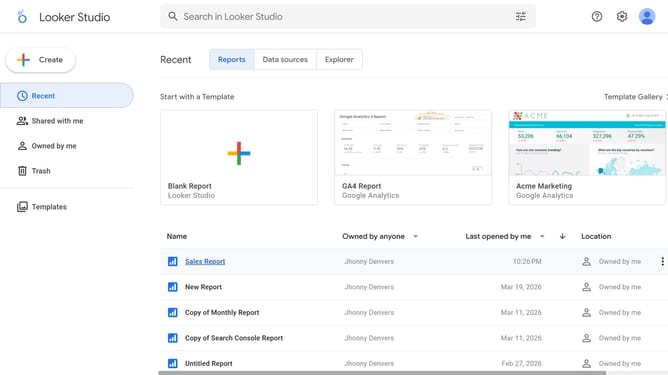
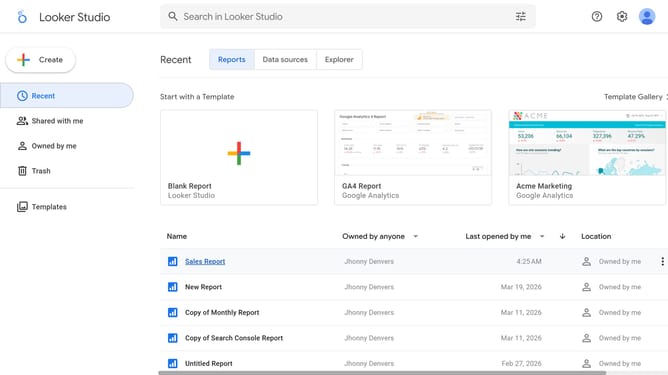
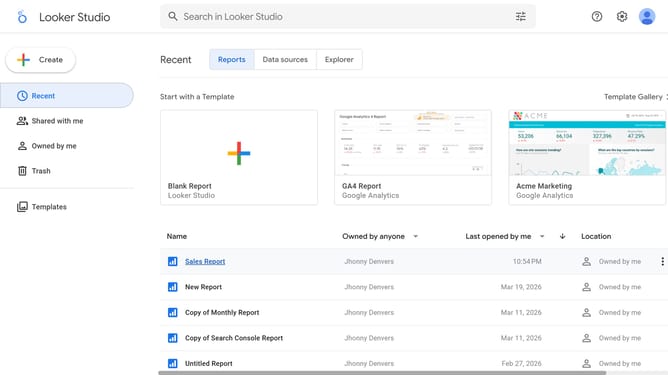
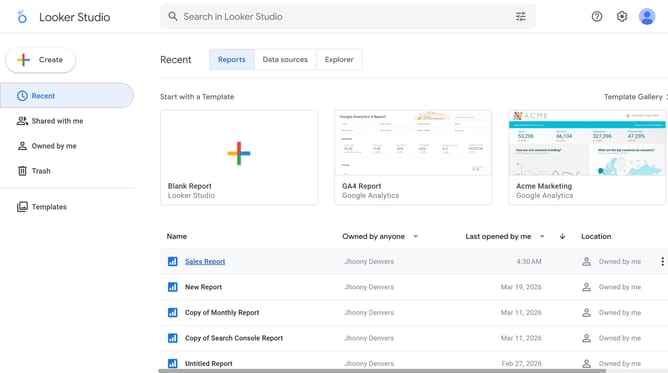
- First click on the file name from the reports list to open it
- Then click on "Edit" button in the top toolbar to enter edit mode
- Next click on "Page" menu item in the top menu bar to access page options
- Next click on the page name in the right sidebar
- Next click on the "Show properties" button above the pie chart
- Then click on "Font size" dropdown in the Pie chart properties panel
- Finally select an option from the font size dropdown menu
Why should you manage the font size of legends in a pie chart in Looker Studio
Looker Studio is a powerful tool designed to transform data into compelling visual stories.
Among the many features it offers, managing the font size of legends in a pie chart ensures that your visualizations are both informative and aesthetically pleasing.
This customization allows for better readability, ensuring that every viewer can effortlessly interpret the data being presented.
Using the right font size for legends enhances the clarity of your visual narrative, making your data communication more effective and impactful.
Last update