How to manage running schedule of a Zoom scenario on specified dates in Make
Here is how to manage running schedule of a zoom scenario on specified dates in make
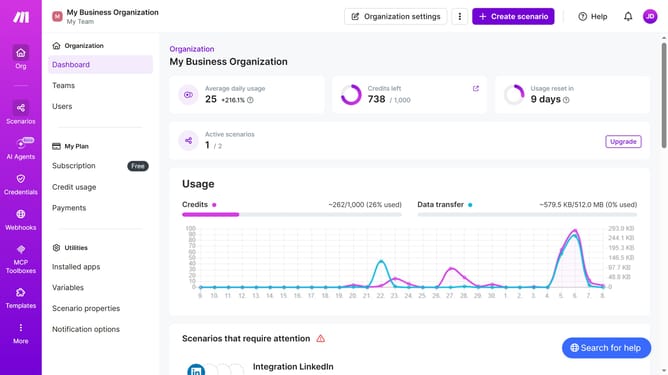
- First click on "Scenarios" link in the left sidebar
- Then click on the Zoom scenario
- Next click on the "Options" button in the top action bar to open the dropdown menu
- Then select "Scheduling" from the dropdown menu
- Click on the "Run scenario" dropdown in the "Schedule settings" modal
- Then select "Specified dates" from the "Run scenario" dropdown options
- After that, click on the "Months" dropdown
- Then select a checkbox from the list of months
- Then click on the "Days" dropdown
- Then select a checkbox from the list of days
- Finally click on the "Save" button to save the schedule settings
Why should you manage running schedule of a Zoom scenario on specified dates in Make
Make is an intuitive automation platform that streamlines processes without coding headaches.
With Make, users can effortlessly manage the running schedule of a Zoom scenario on specified dates, ensuring that meetings and webinars are executed at precisely the right time.
This scheduling feature offers flexibility and precision, enhancing productivity by allowing users to align their Zoom interactions seamlessly with their personal or organizational calendars.
Ultimately, it provides users peace of mind, knowing their Zoom tasks are not only timely but also well-coordinated within their workflows.
Last update