How to manage opacity of page background of a pie chart in Looker Studio
Here is how to manage opacity of page background of a pie chart in looker studio
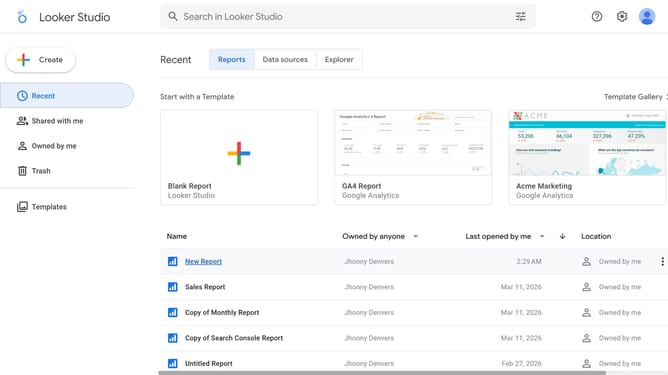
- First click on the file name from the reports list to open it
- Then click on "Edit" button in the top toolbar
- Next click on "Manage pages" option in the page navigation toolbar
- Next click on the page name in the right sidebar
- Next click on the "Show properties" button above the pie chart
- Then click on the "Opacity" dropdown in the Background and border section
- Finally select an opacity percentage option from the opacity options
Why should you manage opacity of page background of a pie chart in Looker Studio
Looker Studio is a versatile platform designed for creating insightful data visualizations with ease.
Managing the opacity of the page background in a pie chart can enhance the visual impact of your data, making it stand out beautifully. This feature in Looker Studio allows users to customize transparency levels, ensuring that the pie chart is the focal point of the presentation.
By adjusting opacity, users can create a balanced visual experience, improving readability and focus. This enhances the overall data storytelling, making information clearer and more compelling for audiences.
Last update