How to change background color of a funnel chart in Looker Studio
Here is how to change background color of a funnel chart in looker studio
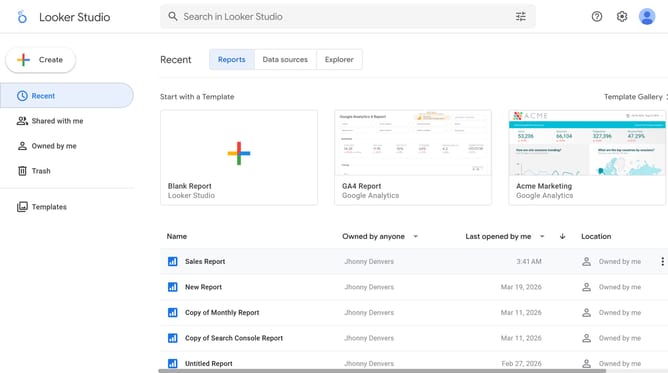
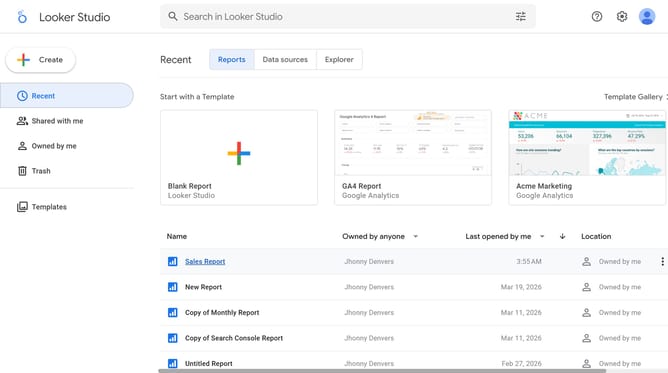
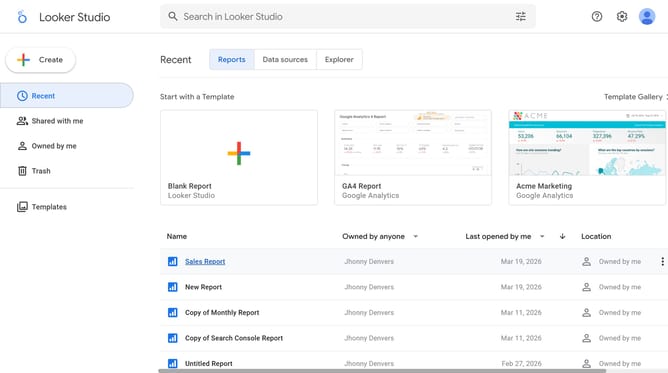
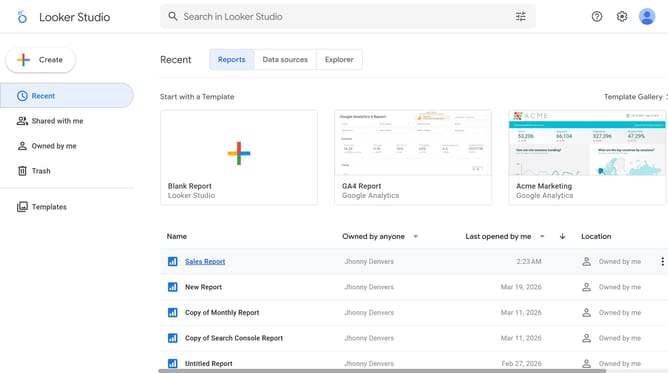
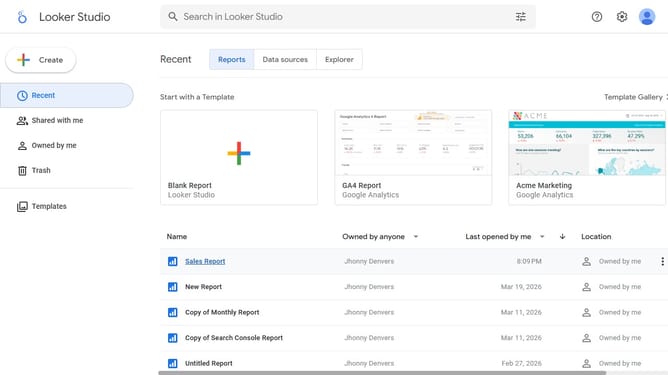
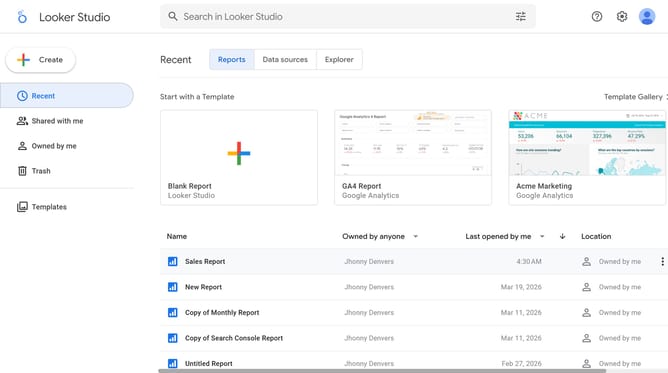
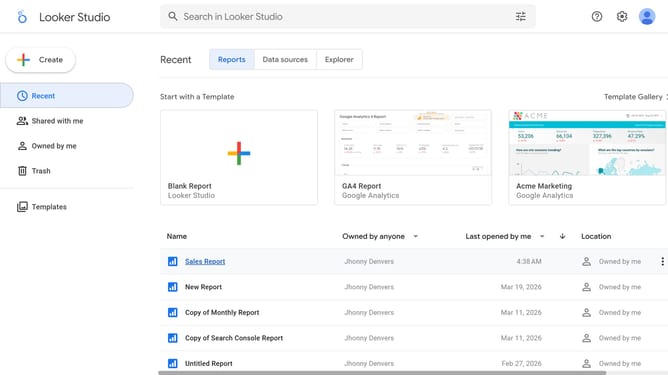
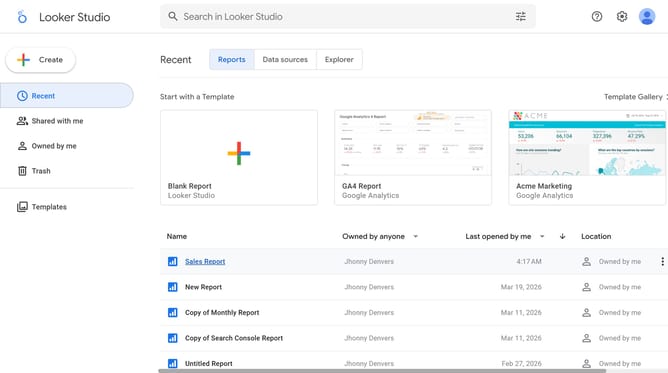
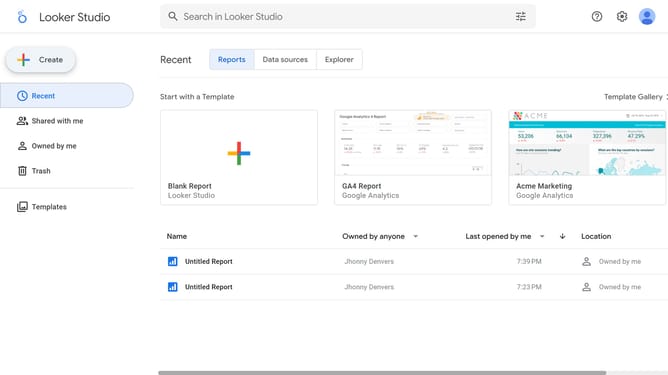
- First click on the file name from the reports list to open it
- Then click on the "Edit" button in the top toolbar
- Next click on "Manage pages" option in the page navigation toolbar
- Next click on the page name that you want to manage in the right sidebar
- Next click on the "Show properties" button above the table chart
- Then click on the "Background" dropdown in the Background and border section of the right properties panel
- Finally select a color from the color picker palette that appears
Why should you change background color of a funnel chart in Looker Studio
Looker Studio is a powerful tool designed to transform raw data into insightful and visually compelling reports.
One of its many customizable features includes the ability to change the background color of a funnel chart. This functionality enables users to enhance the visual appeal and clarity of their data presentations.
By utilizing different background colors, users can highlight specific data trends and improve overall comprehension for their audience. This level of customization ensures that each report is not only informative but also visually engaging, making data storytelling more effective.
Last update