How to manage alignment in a table in Zapier
Here is how to manage alignment in a table in zapier
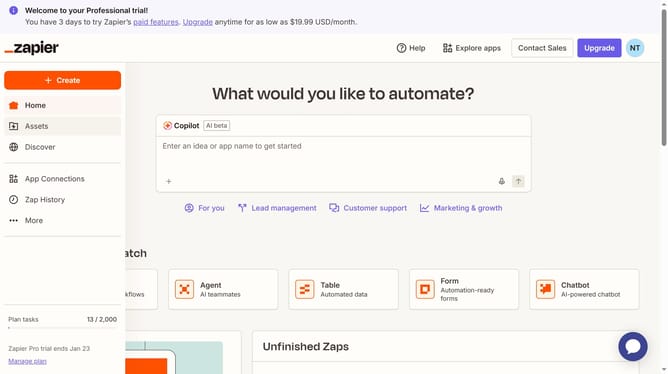
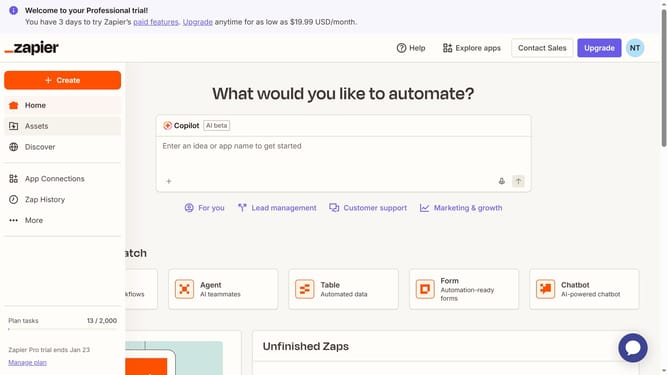
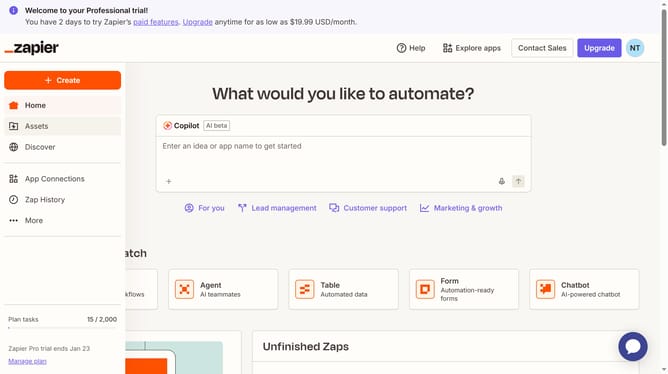
- First click on "Assets" in the left sidebar navigation menu
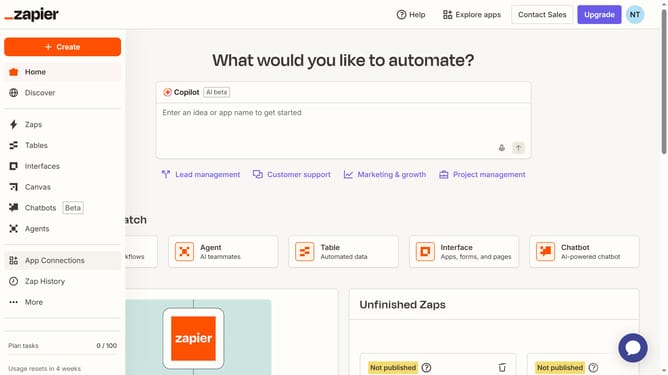
- Then click on "Tables" in the left sidebar navigation menu
- Next click on the table name in the main content area
- Then click on the column header to open the column options menu
- Next click on "Edit field" option in the dropdown menu
- Then click on the "Alignment" dropdown field in the Edit field panel
- Next select your preferred option from the Alignment dropdown menu
- Finally click on "Save" button at the bottom of the Edit field panel
Why should you manage alignment in a table in Zapier
Zapier is a versatile automation tool designed to seamlessly connect various applications for enhanced productivity.
In Zapier, managing alignment in a table becomes a vital feature for organizing data visually. This feature ensures that your data not only looks tidy but also enhances readability and comprehension.
The advantage of aligning your table data properly is its ability to streamline how information is consumed, making sure that every entry is easy to locate and understand at a glance.
Utilizing alignment features effectively can dramatically enhance the clarity and professionalism of your automated reports and tables.
Last update