How to set custom no-answer message in chatbot in Zapier
Here is how to set custom no-answer message in chatbot in zapier
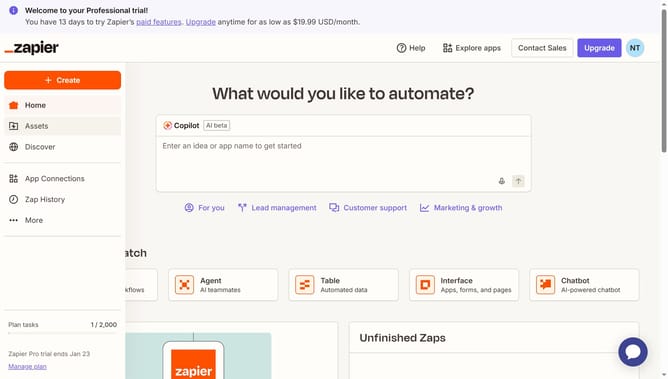
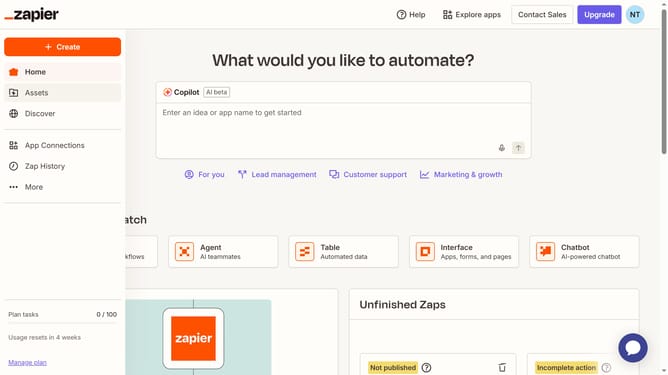
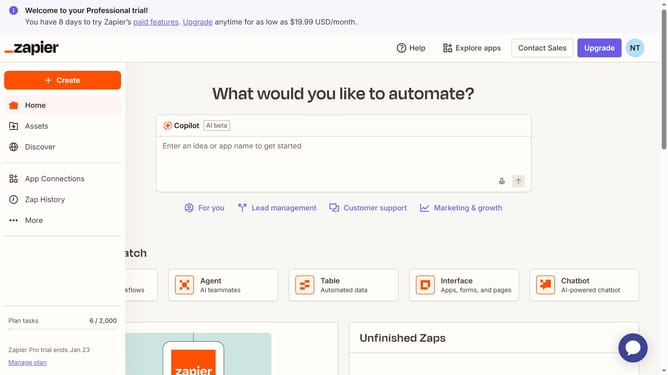
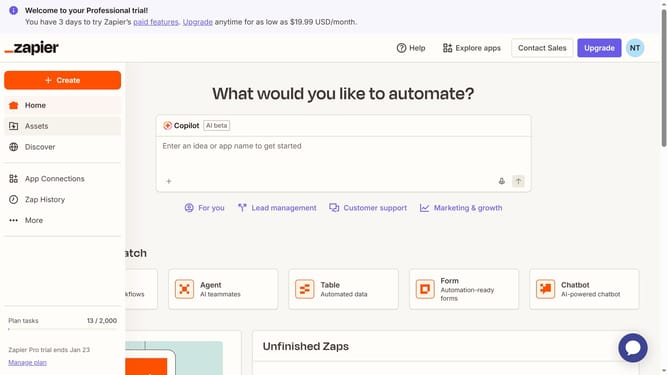
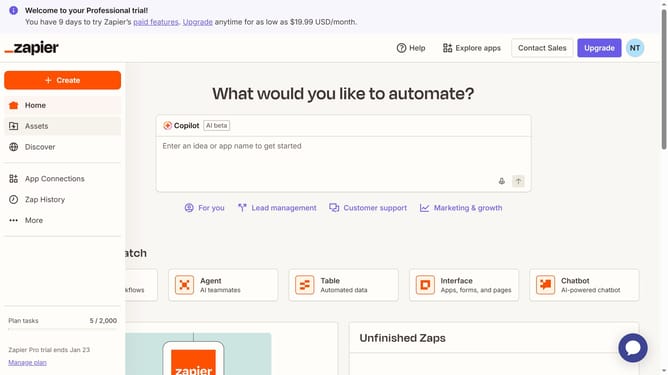
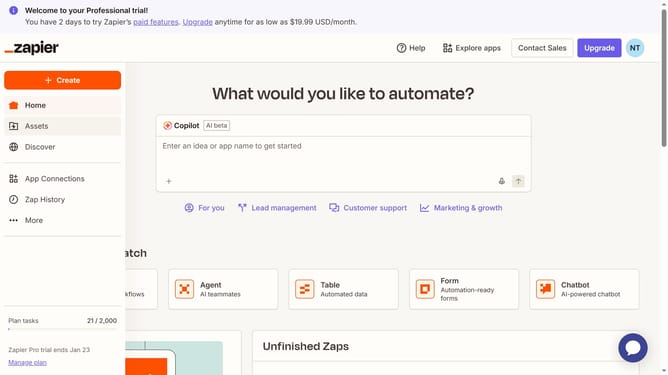
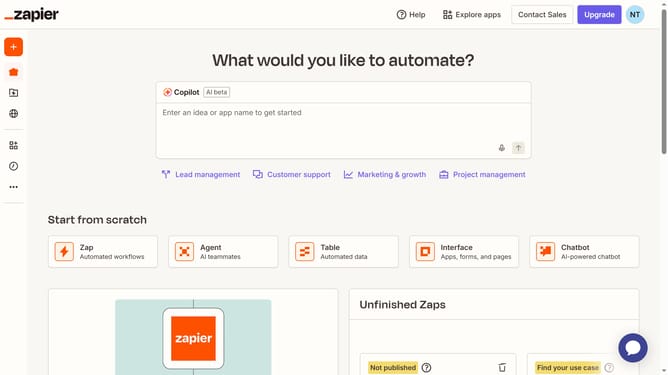
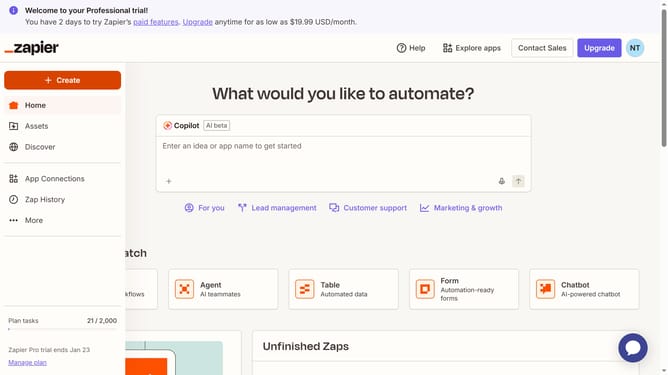
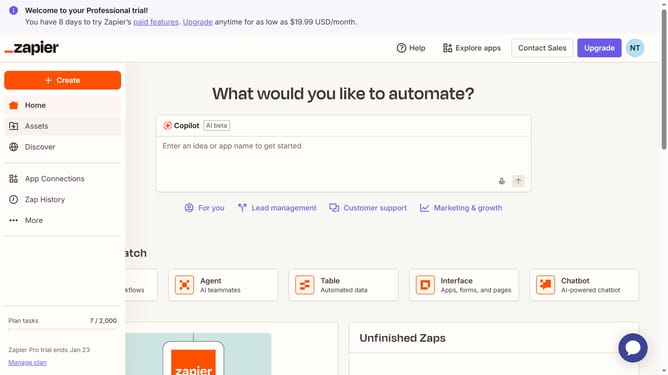
- First click on "Assets" in the left sidebar navigation menu
- Then click on "Chatbots" in the left sidebar under the Assets section
- Next click on the chatbot link you want to open from the chatbots list
- Then click on "Knowledge" in the left sidebar under the Build section
- Next click on "Knowledge settings" button in the main content area
- Then click on the input field in the "Custom message" and modify it
- Finally click on "Save" button to confirm the changes
Why should you set custom no-answer message in chatbot in Zapier
Zapier seamlessly connects your favorite apps, automating workflows effortlessly.
Setting a custom no-answer message in Zapier's chatbot allows for a personalized user experience even when the bot doesn't know an answer.
This feature ensures that users always receive a tailored response, enhancing user interaction and satisfaction.
By maintaining engagement, it helps businesses manage customer expectations and retain loyalty through thoughtful communication.
Last update