How to add a date and time column in a table in Zapier
Here is how to add a date and time column in a table in zapier
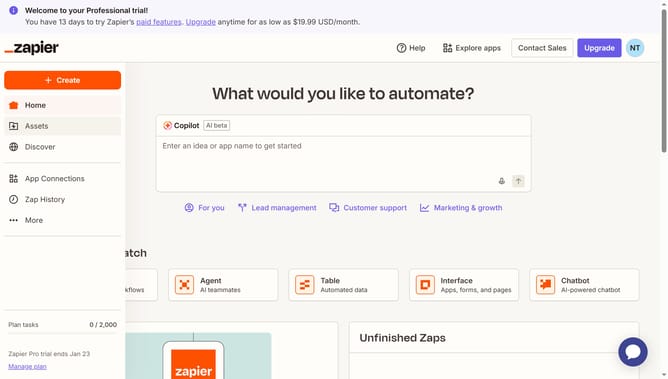
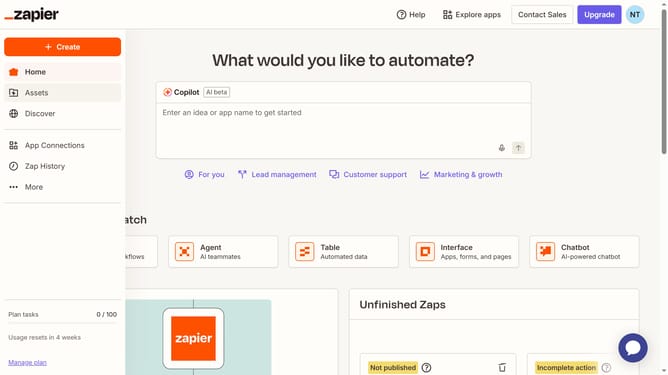
- First click on "Assets" in the left sidebar navigation menu
- Then click on "Tables" in the left sidebar navigation menu
- Next click the link of the table from the tables list
- Then click on "Add field" button in the top right area of the table view
- Next click on "Date & time" option from the field type dropdown menu
- Then enter column title in the "Name" text field in the create field panel
- Finally click on "Create" button at the bottom of the create field panel
Why should you add a date and time column in a table in Zapier
Zapier is a powerful automation tool that seamlessly connects your favorite apps, enhancing workflow efficiency.
Adding a date and time column in a table within Zapier empowers you to track and organize data with precision.
This feature ensures that entries are time-stamped, providing valuable insights into timing and trends.
Utilizing this capability helps streamline processes, ensuring that your data is not only accurate but also contextual, thus facilitating more informed decision-making.
Last update