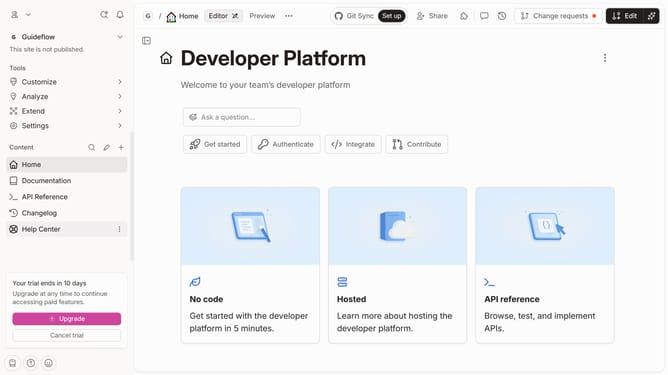
How to link directly to specific sections using anchor links in Gitbook
Here is how to link directly to specific sections using anchor links in gitbook
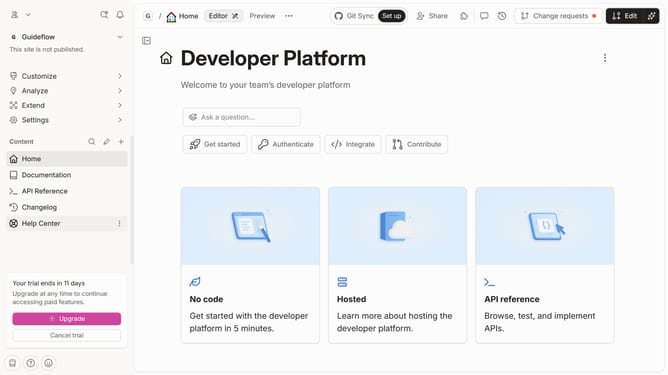
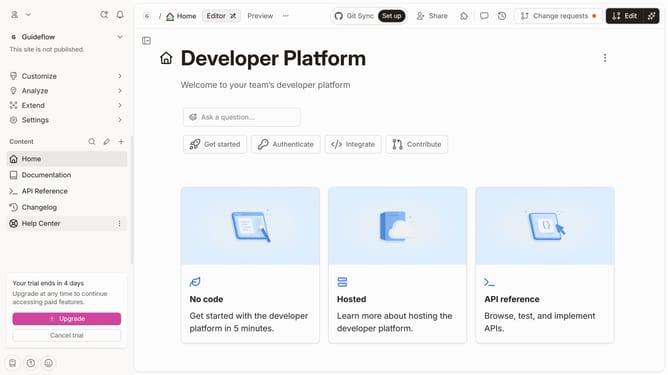
- First click the "#" button to update the URL in your browser’s top bar
- Then copy the site's URL
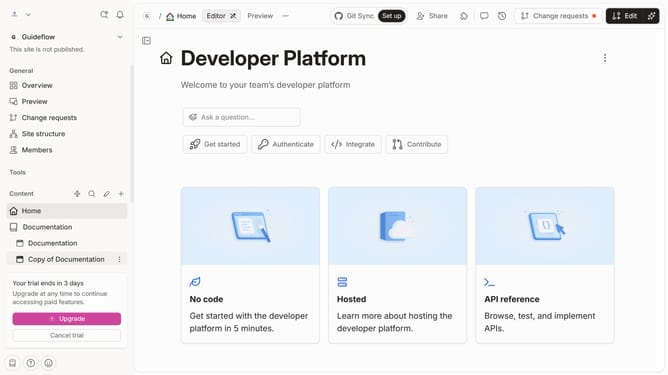
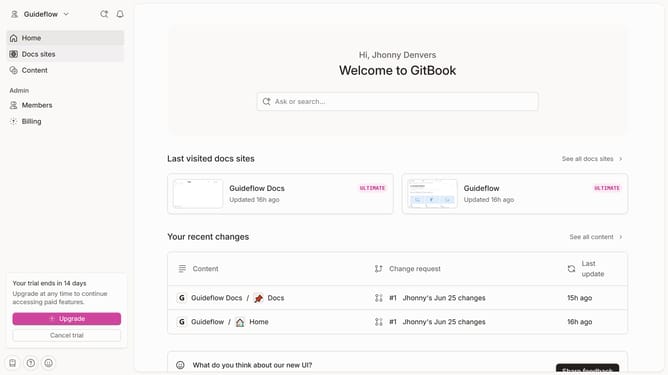
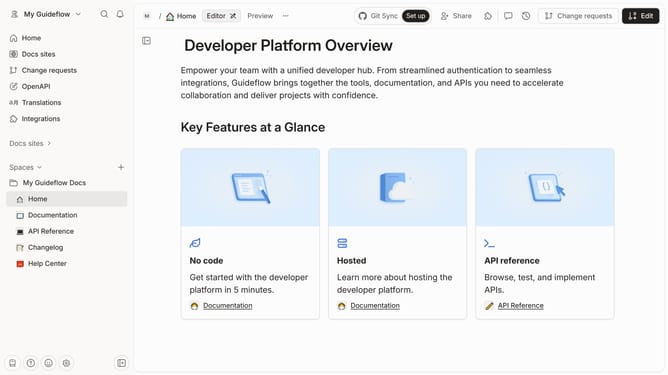
- Next open the docs site that you want to link the anchor to
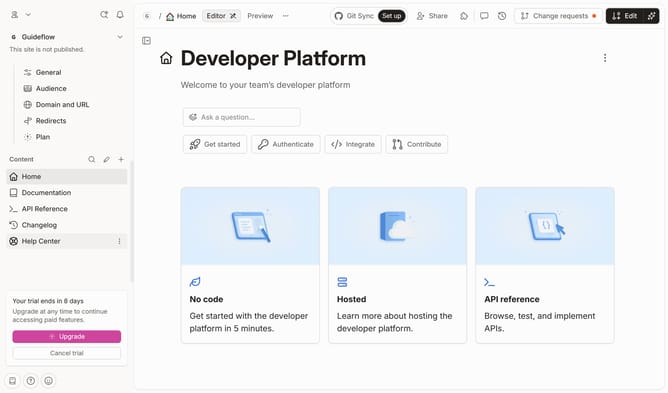
- Next click on the "Start editing content" button in the main content area
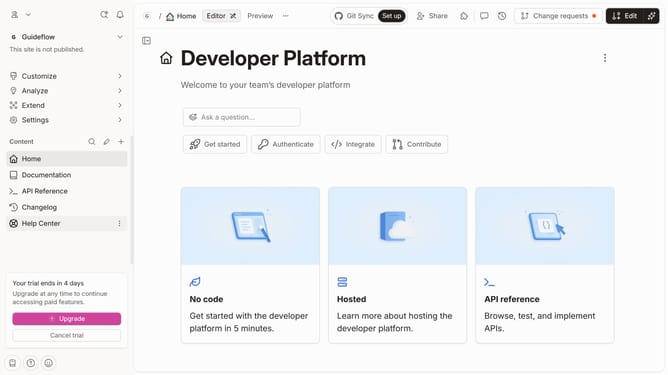
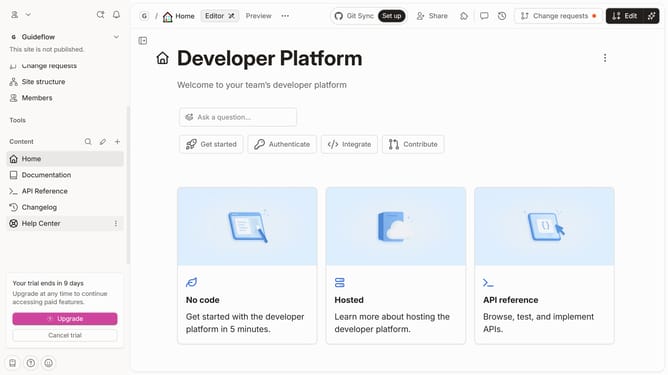
- Click the "Edit" button in the top-right corner of the interface
- Then click the "+" button besides the text
- Select "Embed a URL..." option from the dropdown menu
- Paste the link that you just copied from the other project
- Then click the button "Insert" after pasting
- Finally click the "Merge" button in the top-right toolbar after pasting the URL
Why should you link directly to specific sections using anchor links in Gitbook
GitBook is an intuitive platform designed to create beautiful documentation effortlessly.
By utilizing anchor links in GitBook, you can easily direct readers to specific sections within your documentation, streamlining navigation and enhancing user experience. This feature allows users to access exactly the information they need without having to scroll through entire documents.
Implementing anchor links not only increases efficiency but also significantly boosts content accessibility, making GitBook an invaluable tool for producing clear, organized, and user-friendly documentation.
Last update