How to insert link to an image in an internal article on Intercom
Here is how to insert link to an image in an internal article on intercom
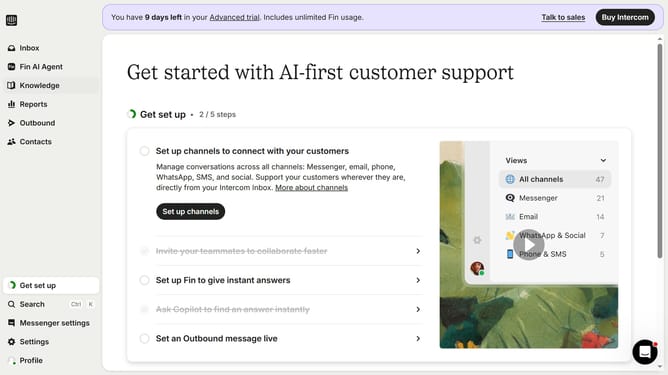
- First, click on "Knowledge" in the left sidebar
- Then, click on the article title in the main content area
- Next, click on the edit icon to edit the article
- In the article editor, click on the image
- Then, click on the link icon that appears above the image
- After that, enter a link in the input field and press Enter
- Finally, click on the "Save" button to save the changes
Why should you insert link to an image in an internal article on Intercom
Intercom is a powerful communication tool designed to enhance customer engagement and support with ease.
Inserting a link to an image within an internal article on Intercom enhances the viewer's experience by providing easy access to essential resources or content, directly through engaging visuals.
This feature can efficiently guide users to relevant information, boosting the connectivity and flow of your communications while enhancing the overall effectiveness of your articles.
Last update