How to insert divider in an internal article on Intercom
Here is how to insert divider in an internal article on intercom
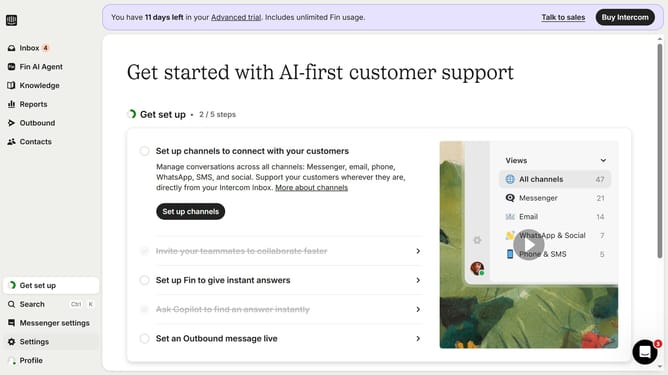
- First click on "Knowledge" in the left sidebar menu
- Then click on the "Articles" tab
- Next, click on the article title in the main content area
- In the article editing interface, click on the edit icon
- Click on the article text editor
- Then click on the "Insert divider" button
- Finally, click on the "Save" button to save the changes
Why should you insert divider in an internal article on Intercom
Intercom is a versatile platform designed to enhance business communication and customer engagement efficiently.
Inserting a divider in an internal article on Intercom is a simple yet powerful feature that adds visual clarity to your content. Dividers help organize information, making it user-friendly and visually appealing, which can enhance reader comprehension and retention.
By delineating sections clearly, you can focus attention on key points, ensuring critical information stands out—perfect for maintaining reader interest and delivering a seamless reading experience.
Last update