How to add a file in an email autoreply in Intercom
Here is how to add a file in an email autoreply in intercom
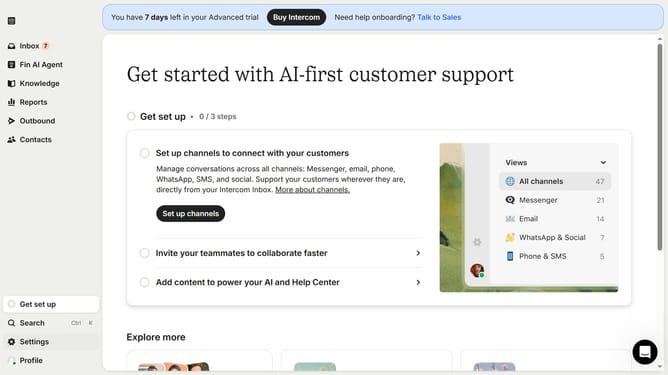
- First click on "Settings" item in the left sidebar
- Then click on "Channels" item in the left sidebar
- Then click on "Email" item in the left sidebar
- Then click on "Email settings" tab
- Then click on "Configure auto reply" button
- Then click on the plus icon to add a new element to the email body
- Then click on "File" option
- Finally click on "Save changes" button
Why should you add a file in an email autoreply in Intercom
Intercom is a powerful platform designed to enhance customer interaction and support through automated messaging.
By adding a file in an email autoreply within Intercom, you streamline your communication process, providing customers with immediate access to important documents. This feature is especially beneficial for delivering user guides, policy documents, or promotional materials.
Offering such files instantly can enhance customer satisfaction, as it reduces waiting time and ensures they have the necessary resources at their fingertips.
Overall, this small yet impactful addition can significantly improve the efficiency and professionalism of your customer communication.
Last update