How to hide the approved tab in PandaDoc
Here is how to hide the approved tab in pandadoc
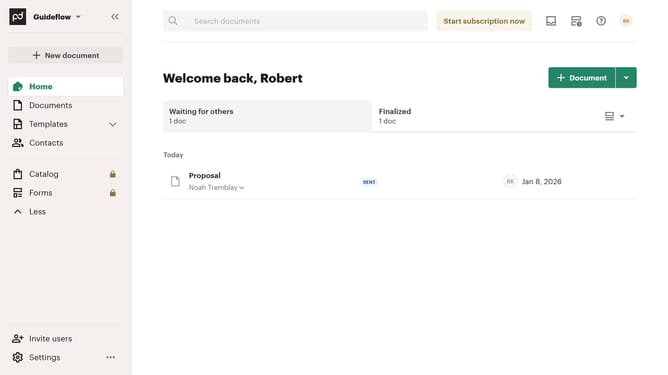
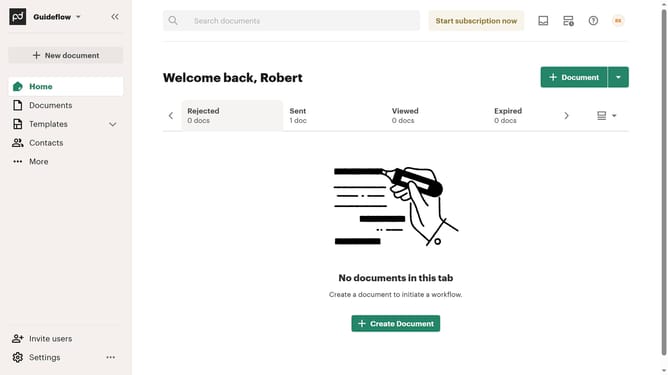
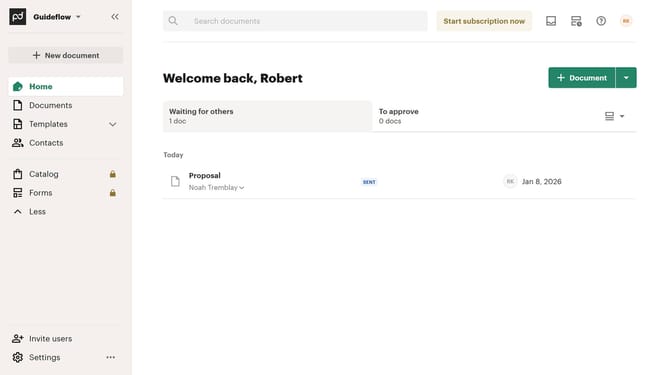
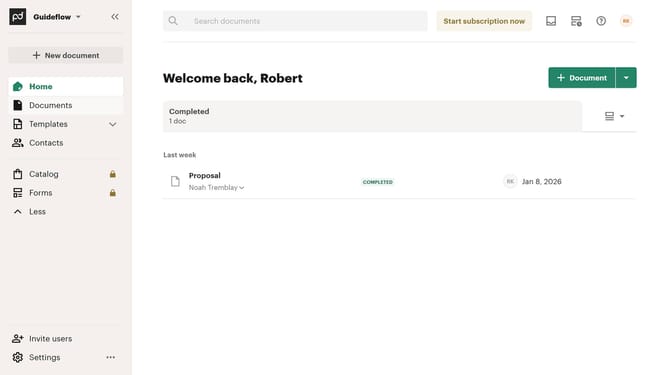
- First click on the view options button in the top right corner of the main content area
- Then click on the "Customize tabs" option from the dropdown menu that appears
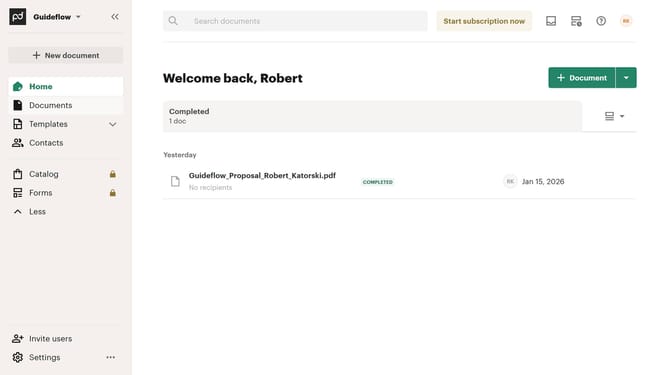
- Next scroll down in the "Customize" modal dialog and click on the "Approved" checkbox to uncheck it
- Then click on the "Approved" checkbox again to deselect it in the tabs list
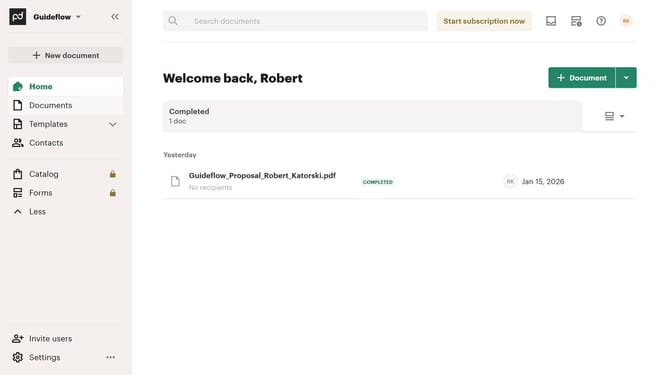
- Finally click on the "Apply" button at the bottom right of the modal dialog to save the changes
Why should you hide the approved tab in PandaDoc
PandaDoc is an innovative platform designed to streamline your document management needs with ease and efficiency.
One of its beneficial features is the ability to hide the approved tab, tailoring the workspace to fit specific organizational requirements.
This feature is particularly valuable for users focusing on drafts or pending documents, reducing clutter for a more organized workflow.
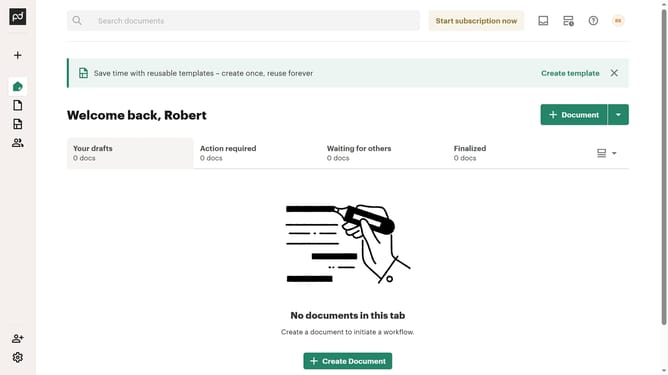
Ultimately, hiding the approved tab enhances focus and productivity, ensuring only essential elements are visible on your dashboard.
Last update