How to hide the rejected tab in PandaDoc
Here is how to hide the rejected tab in pandadoc
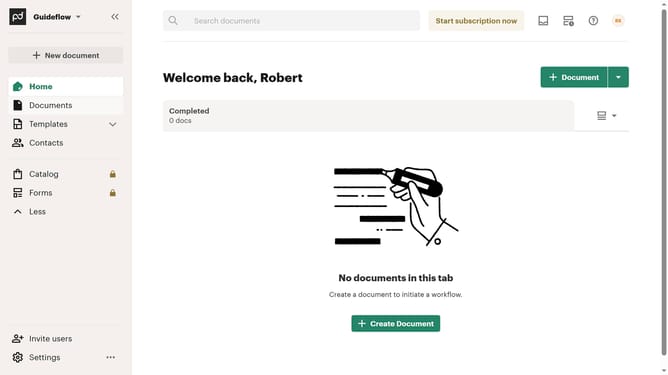
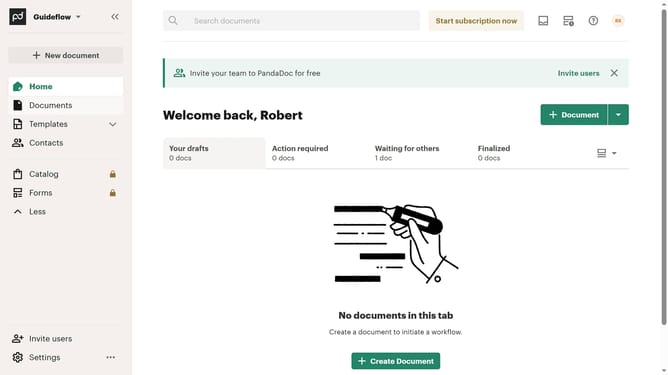
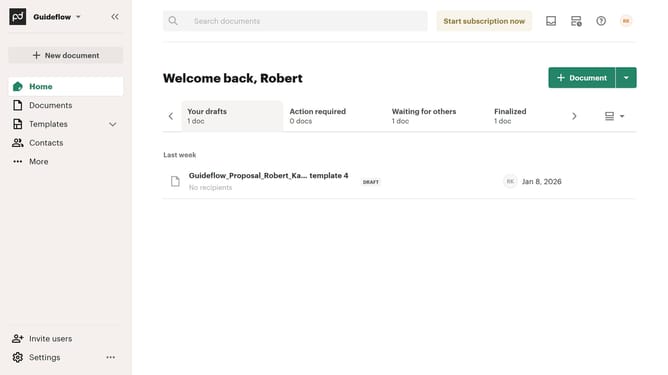
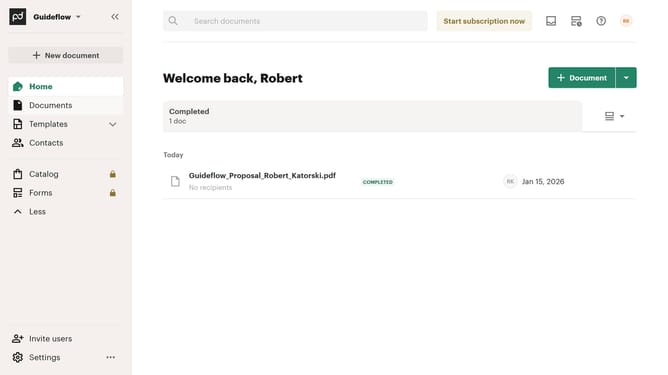
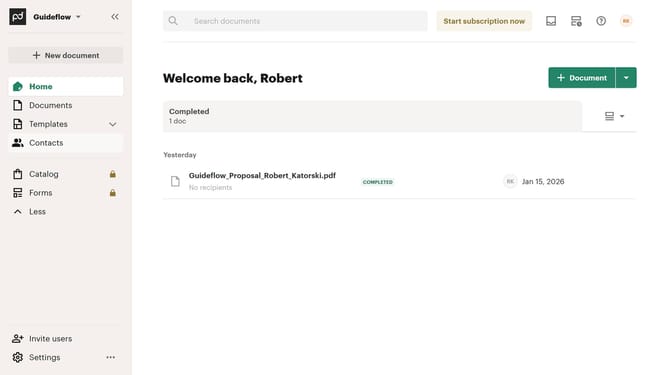
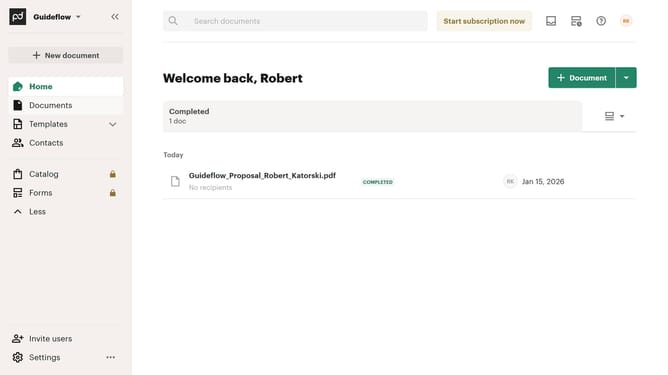
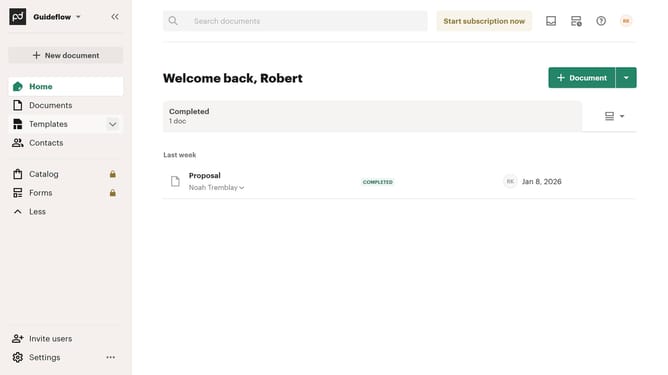
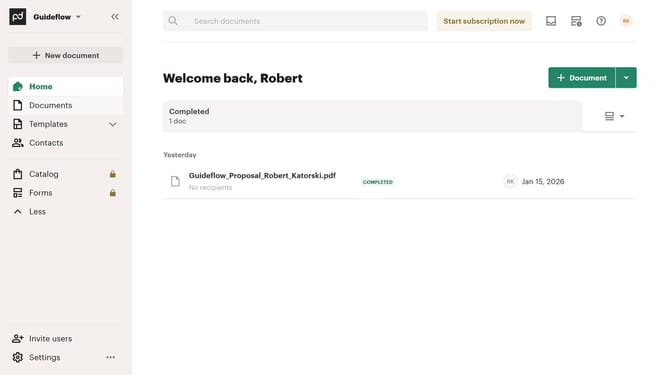
- First click on the view options button in the top right corner of the documents section
- Then click on the "Customize tabs" option from the dropdown menu
- Next scroll down in the customize dialog and click on the "Rejected" checkbox to uncheck it
- Then click on the "Rejected" checkbox again to deselect it from the visible tabs
- Finally click on the "Apply" button to save the customization changes
Why should you hide the rejected tab in PandaDoc
PandaDoc is a dynamic platform designed to streamline document creation, management, and approval processes.
One of its helpful features is the ability to hide the "Rejected" tab, allowing for a more streamlined interface that focuses on active and successful transactions.
By hiding the rejected documents, users can maintain a clutter-free workspace and focus on documents that are currently in progress or require attention, enhancing productivity.
This feature simplifies workflow, minimizes distractions, and helps users keep their task list organized and efficient.
Last update