How to filter imported documents by declined status in PandaDoc
Here is how to filter imported documents by declined status in pandadoc
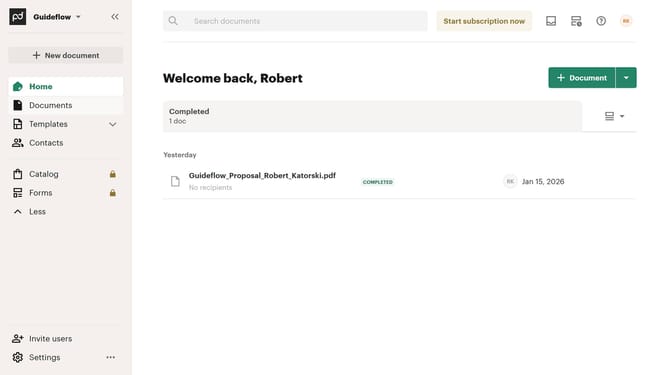
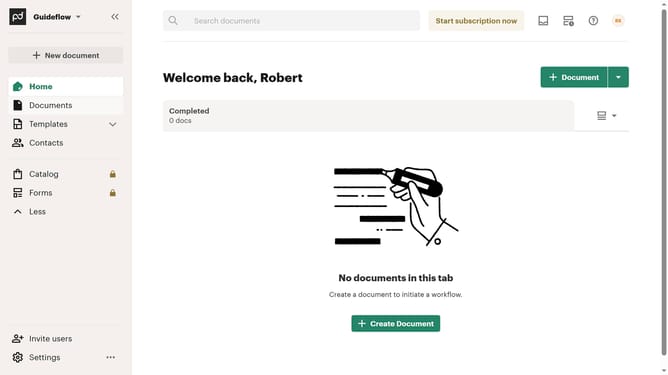
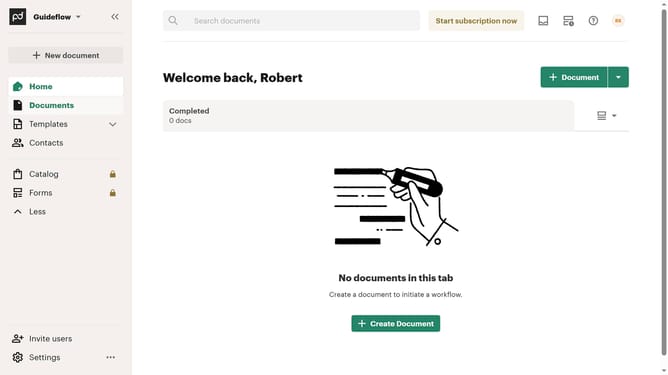
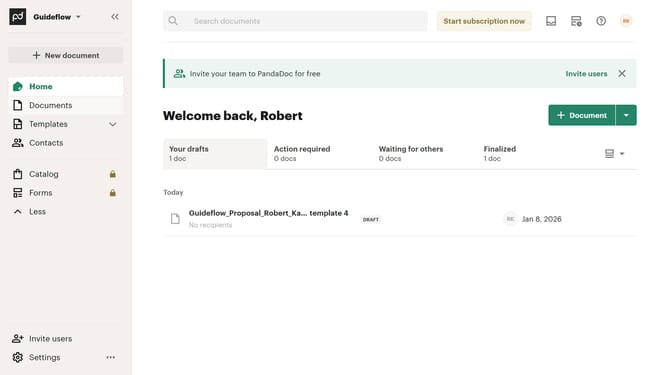
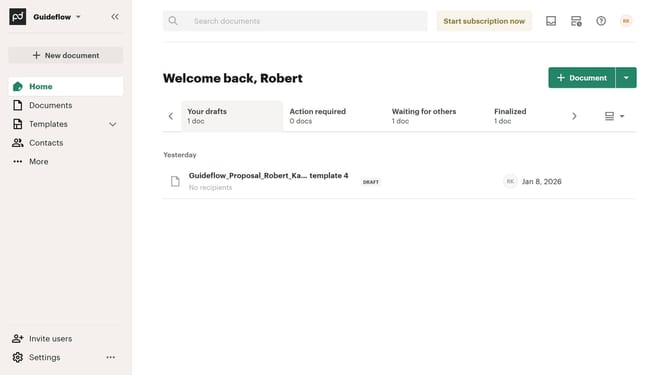
- First click on the "Documents" item in the left sidebar navigation menu
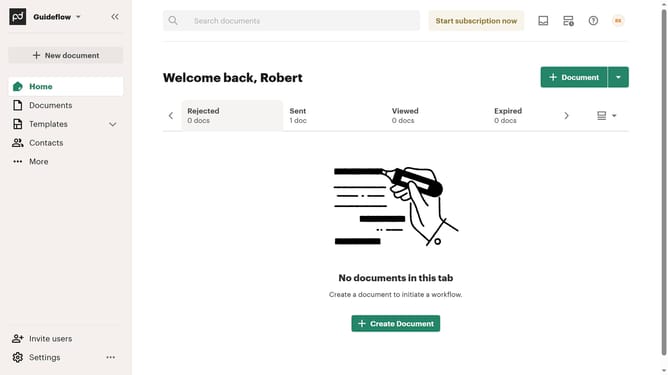
- Then click on the "Imported" tab in the top navigation bar
- Next click on the "Status" dropdown filter button in the filter bar
- Then scroll down in the menu list that appears
- Next click on the "Declined" checkbox option in the status filter dropdown menu
- Finally click on the "Apply" button to confirm the selected status filters
Why should you filter imported documents by declined status in PandaDoc
PandaDoc is a dynamic platform designed to streamline document creation and management, enhancing productivity.
By utilizing the feature to filter imported documents by declined status, users can swiftly identify which proposals did not meet approval, allowing for immediate action or revision.
This feature helps maintain organizational efficiency by ensuring declined documents are easily accessible, fostering a faster response to client feedback.
Ultimately, this targeted filtering enhances workflow management, ensuring every document receives the attention it needs.
Last update