How to give a team member access to all workspaces in Customer.io
Here is how to give a team member access to all workspaces in customer.io
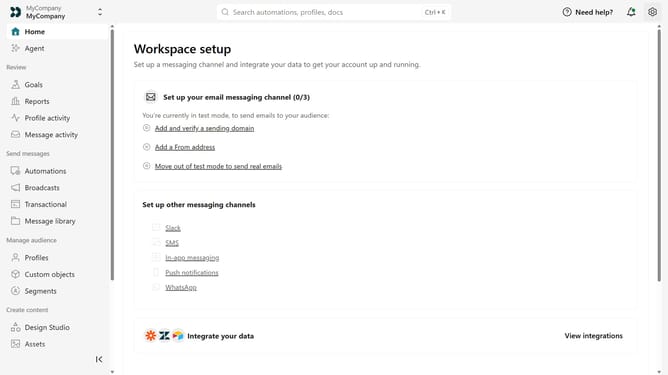
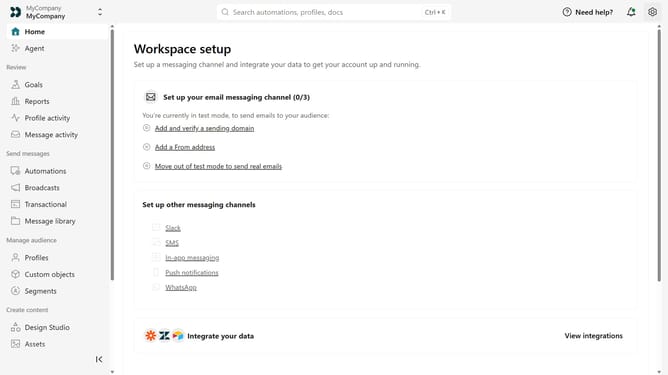
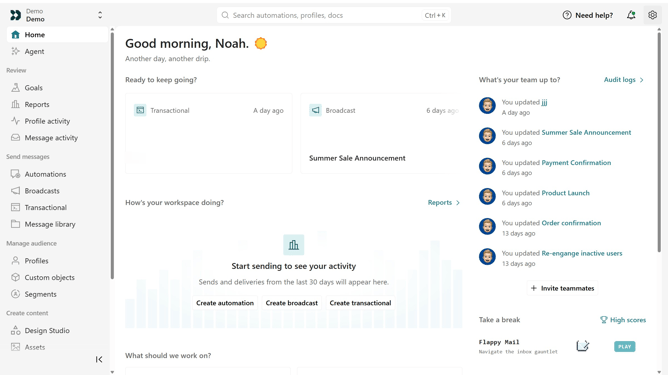
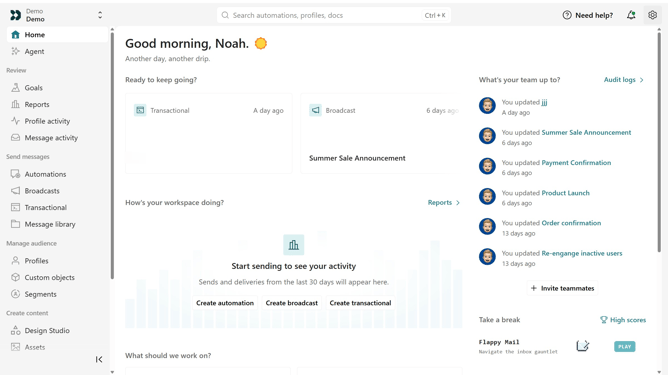
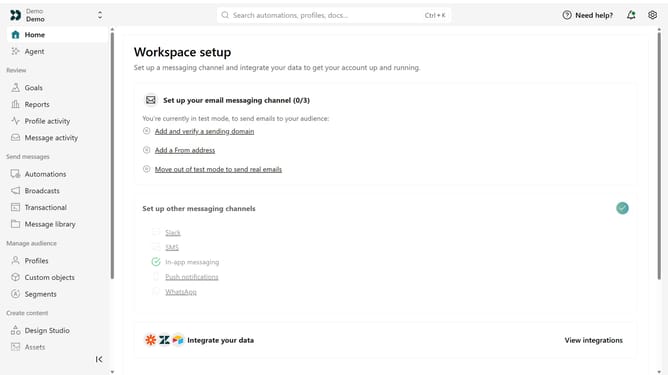
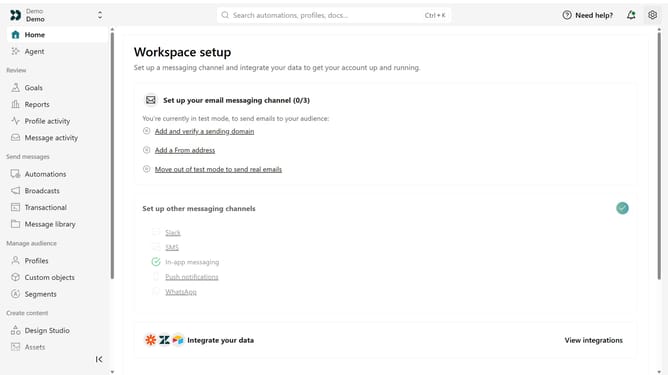
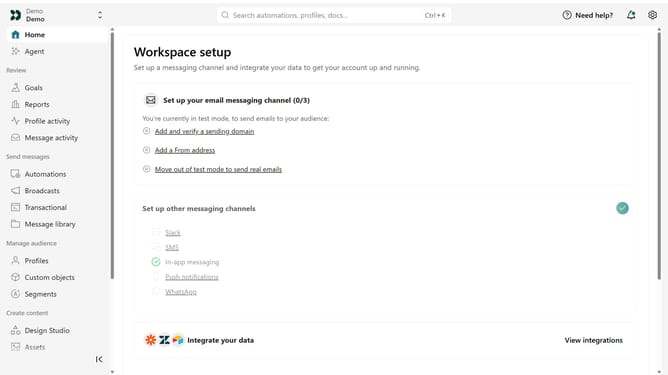
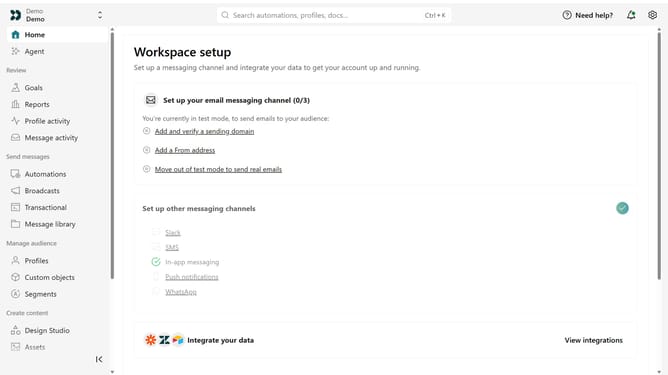
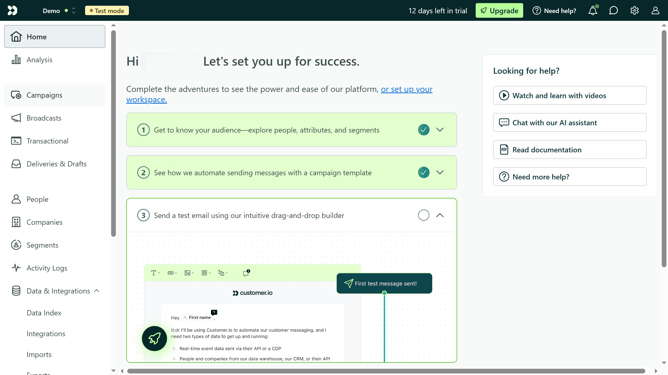
- First click on the settings icon in the top right corner
- Click on "Invite teammate" in the dropdown menu
- Next, enter the new team member's details
- Under "Match permissions", optionally select an existing team member to copy their permissions as a starting point
- After that, click on the "Account level permissions" dropdown
- Select "Member" from the dropdown menu
- Under Workspace level permissions, select "All"
- Next, click on the role dropdown menu
- Then, select the appropriate workspace role
- Finally click on the "Send invite" button
Why should you How to give a team member access to all workspaces in Customer.io
Customer.io is a versatile marketing platform that empowers businesses to deliver personalized customer experiences.
Granting a team member access to all workspaces in Customer.io offers seamless collaboration across multiple projects. This feature ensures that your team can efficiently manage and coordinate marketing campaigns without barriers, fostering agility and consistent communication.
By enabling comprehensive access, every team member is equipped to contribute to strategic planning and decision-making, enhancing workflow efficiency and driving unified brand messaging.
Last update