How to export price books as an XLSX file on Zoho CRM
Here is how to export price books as an xlsx file on zoho crm
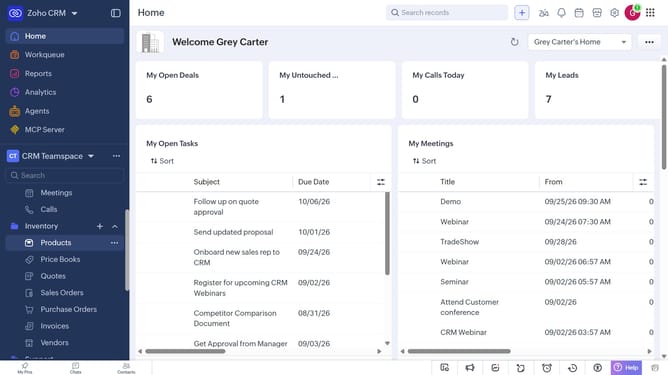
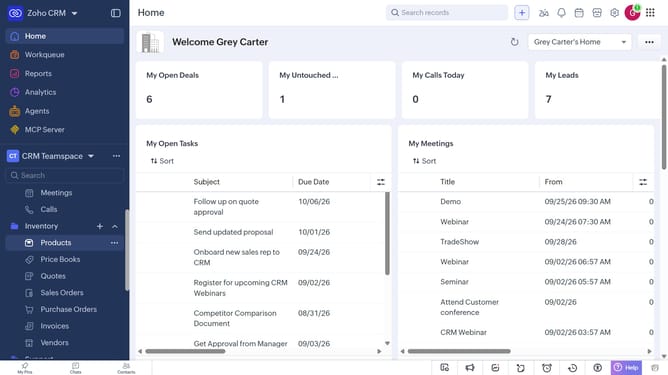
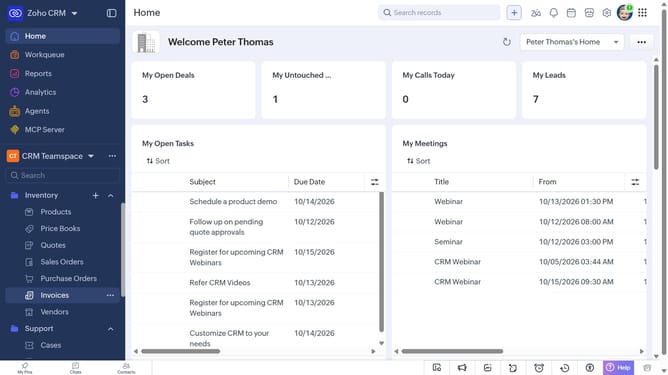
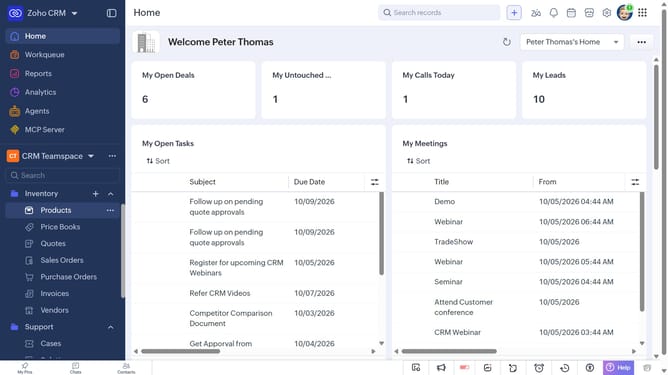
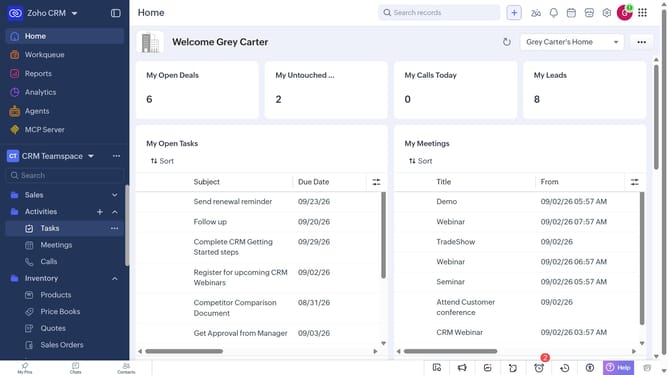
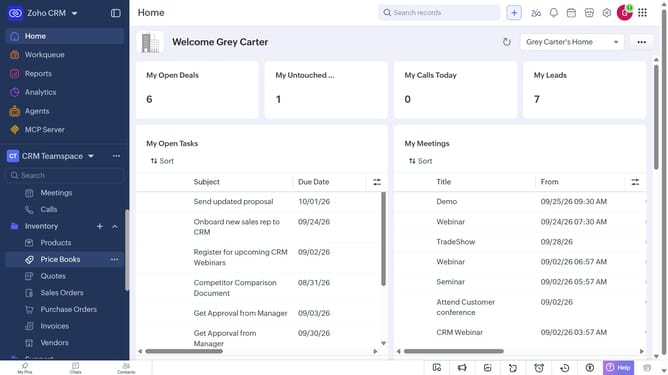
- First, click on "Price Books" under the "Inventory" section in the left sidebar menu
- Next, click on the "More Options" button next to "Create Price Book"
- Select "Export Price Books" from the dropdown menu
- In the "Export Price Book" dialog, click on the "Fields to Export" dropdown
- Choose whether to export all fields or only the fields from custom view
- Then, select "XLSX" as the file type
- Next, toggle the "Set Password" switch on or leave it off
- Finally, click on the "Export" button
Why should you How to export price books as an XLSX file on Zoho CRM
Zoho CRM is a powerful tool designed to streamline business processes, enhancing customer relationships and boosting productivity.
Exporting price books as an XLSX file on Zoho CRM offers remarkable flexibility in managing and analyzing pricing data. This feature allows users to seamlessly transfer essential pricing information into an easy-to-manage Excel format, enhancing accessibility and facilitating data-driven decision-making.
The ability to export price books ensures that teams can efficiently share and collaborate on pricing strategies, fostering better coordination across different departments. With data at your fingertips, your organization can maintain consistency and accuracy, ultimately driving better business outcomes.
Last update