How to export price books on Zoho CRM
Here is how to export price books on zoho crm
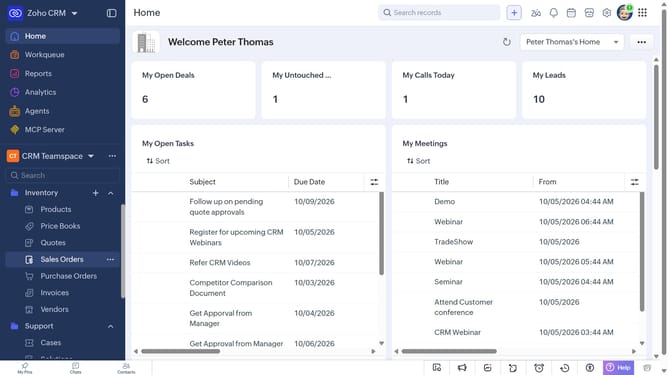
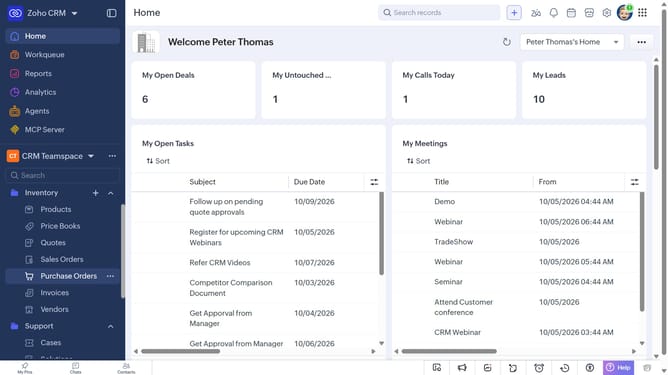
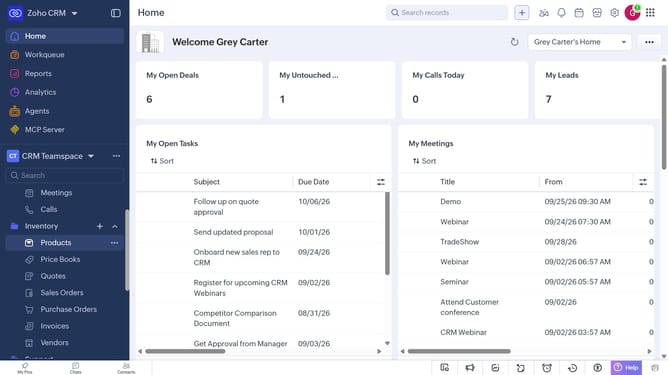
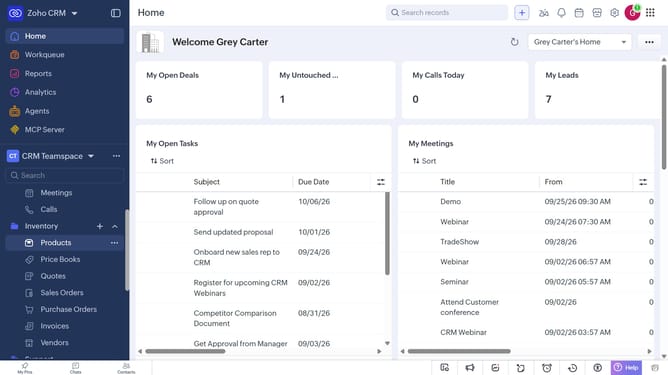
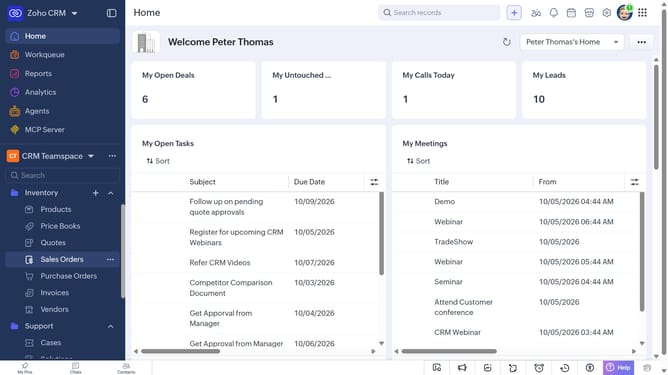
- First, click on "Price Books" under the "Inventory" section in the left sidebar menu
- Next, click on the "More Options" button next to "Create Price Book"
- Select "Export Price Books" from the dropdown menu
- In the "Export Price Book" dialog, click on the "Fields to Export" dropdown
- Choose whether to export all fields or only the fields from custom view
- Then, select the desired file type
- Next, toggle the "Set Password" switch on or leave it off
- Finally, click on the "Export" button
Why should you How to export price books on Zoho CRM
Zoho CRM is a versatile software solution designed to streamline business processes and enhance customer relationships.
One invaluable feature within Zoho CRM is the ability to export price books. This functionality enables users to efficiently manage and share pricing strategies across teams and departments. By exporting price books, organizations ensure that everyone has access to the most up-to-date pricing information, fostering consistency and transparency.
Utilizing this feature minimizes errors and boosts productivity, as teams can focus on executing sales strategies rather than spending time on manual data entry or cross-checking figures. This leads to more informed decision-making and smoother business operations.
Last update