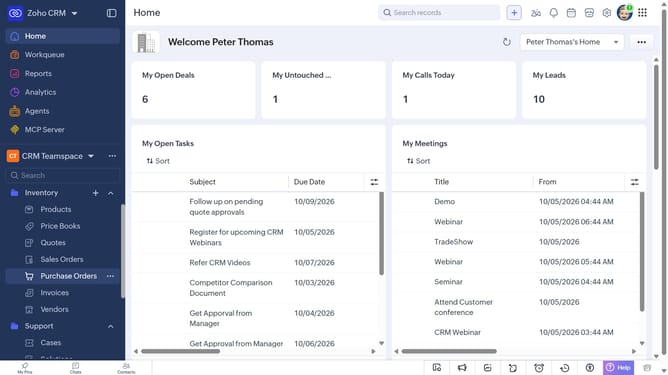
How to preview a product before printing on Zoho CRM
Here is how to preview a product before printing on zoho crm
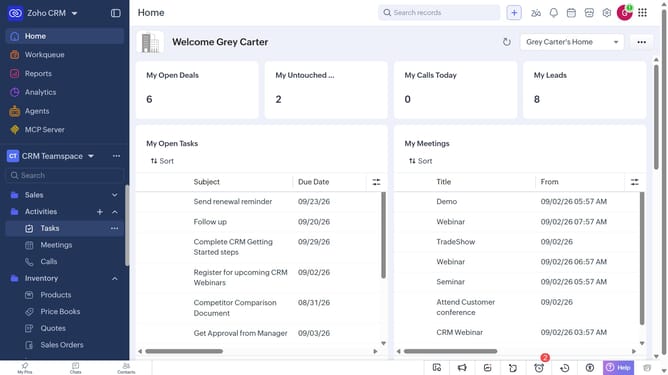
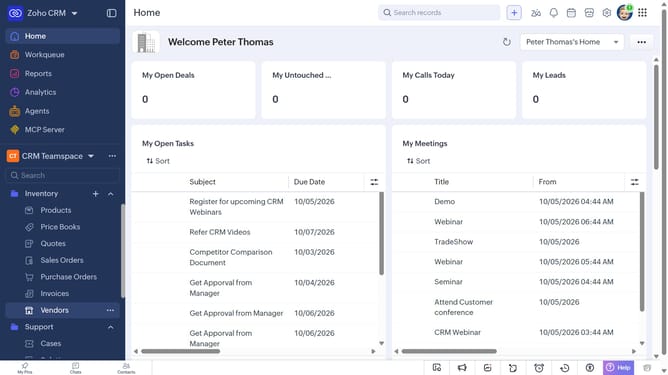
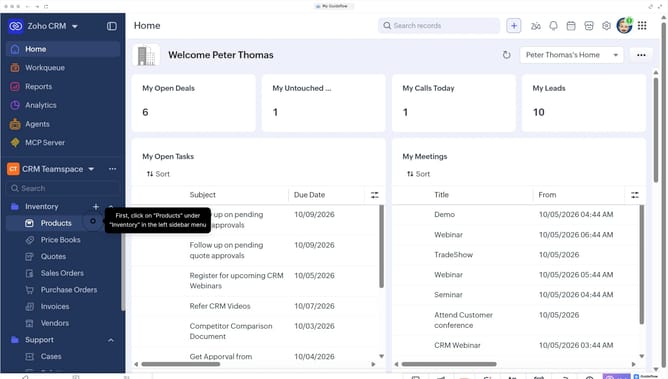
- First, click on "Products" under "Inventory" in the left sidebar menu
- Next, click on the product you want to print
- Click on the "More options" button in the top right corner
- Select "Print Preview" from the dropdown menu
- Then, review the product details in the print preview
- Next, click on the "Choose a Template Category" dropdown and select a template
- Finally, click on the "Print" button
Why should you How to preview a product before printing on Zoho CRM
Zoho is a versatile, user-friendly platform designed to streamline business processes and enhance productivity.
One of the standout features of Zoho CRM is the ability to preview a product before printing. This feature ensures that you can visualize and refine your documents, giving you confidence that everything aligns perfectly before hitting print.
Using this preview feature saves time by reducing errors, enhancing accuracy, and maintaining a professional appearance in all your printed materials. It's a practical solution that adds an extra layer of assurance and precision to document handling.
Last update