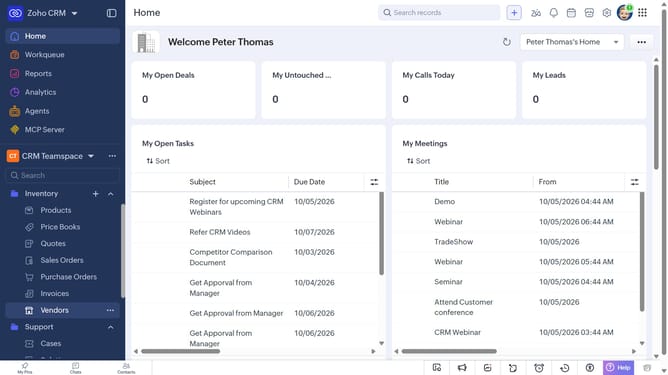
How to display mandatory fields with a red accent line on Zoho CRM
Here is how to display mandatory fields with a red accent line on zoho crm
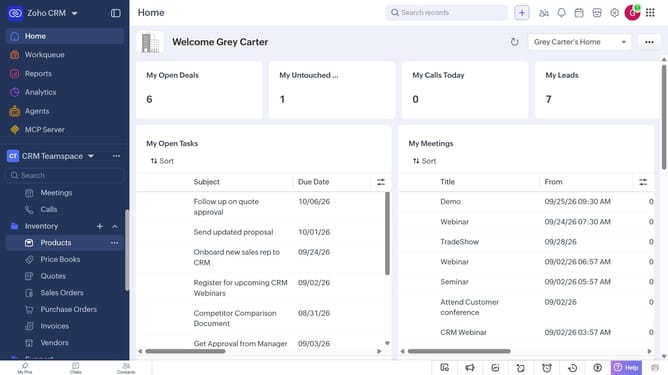
- First click on the settings icon in the top menu
- Next click on "Personal Settings" under the "General" section
- Click on the "Accessibility" tab
- After that, click on the "Vision" tab
- Locate the "Mandatory Field Display" option
- Then, click on the "Mandatory Field Display" dropdown
- Finally, select "Red Accent Line (Default)" from the dropdown
Why should you How to display mandatory fields with a red accent line on Zoho CRM
Zoho CRM is a dynamic platform designed to streamline business processes and enhance customer relationships.
Displaying mandatory fields with a red accent line in Zoho CRM adds a visual layer of clarity, ensuring that crucial information is never overlooked. This feature efficiently organizes data entry, creating a seamless experience for users.
By emphasizing required fields, teams can minimize errors and improve data accuracy. This not only boosts productivity but also reinforces data integrity, making your CRM system more reliable and effective.
Last update