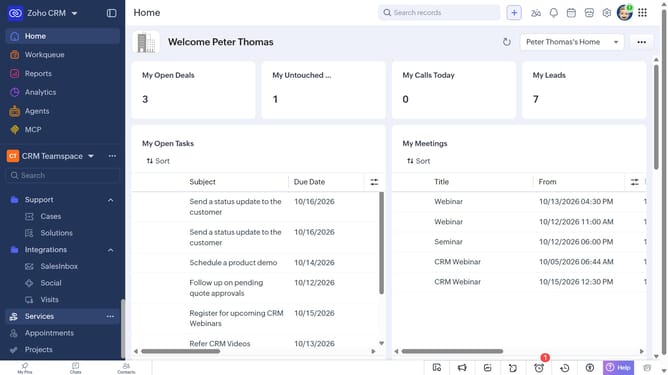
How to share a price book on Zoho CRM
Here is how to share a price book on zoho crm
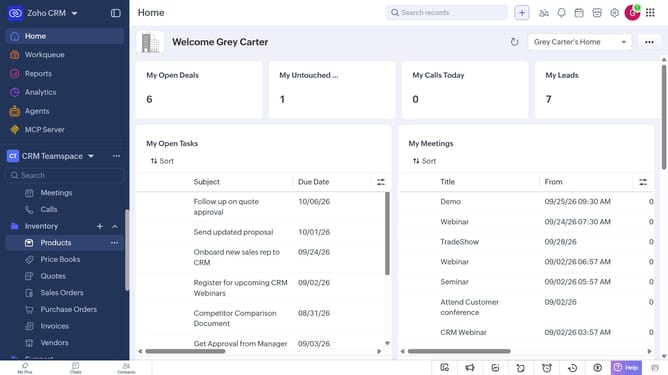
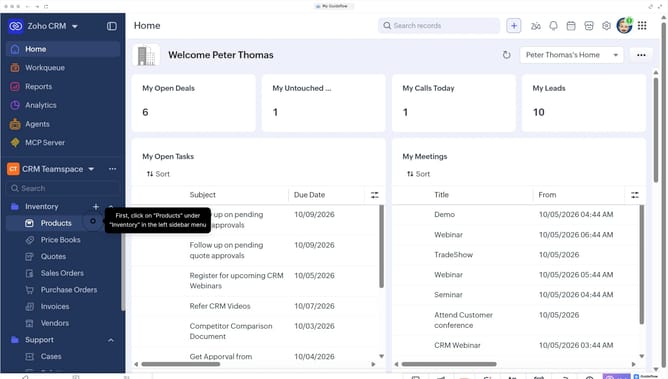
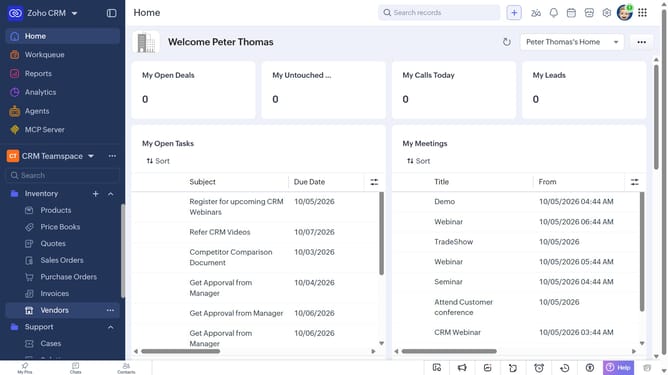
- First, click on "Price Books" under the "Inventory" section in the left sidebar menu
- Next, click on the price book you want to share
- After that, click on the "More Options" menu
- Select "Share" from the dropdown menu
- Next, select the record access type (Private or Public)
- Then, click the "Permission" dropdown
- From the dropdown menu, choose the appropriate permission level
- Finally, click on the "Share" button to confirm
Why should you How to share a price book on Zoho CRM
Zoho CRM is an intuitive platform designed to streamline your customer relationship management effortlessly.
Sharing a price book in Zoho CRM enhances collaboration within your team, ensuring everyone is aligned with the most current pricing strategies.
This feature allows you to maintain consistency and transparency across departments, easing the process of offering standardized pricing to your customers.
By simplifying access, it minimizes errors and boosts productivity, ultimately driving sales success.
Last update