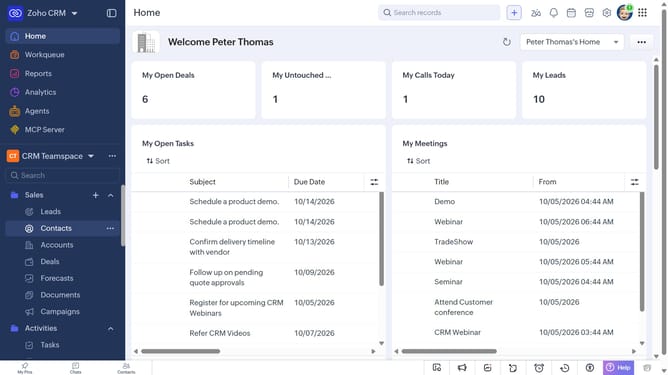
How to disable Switch Labels on Zoho CRM
Here is how to disable switch labels on zoho crm
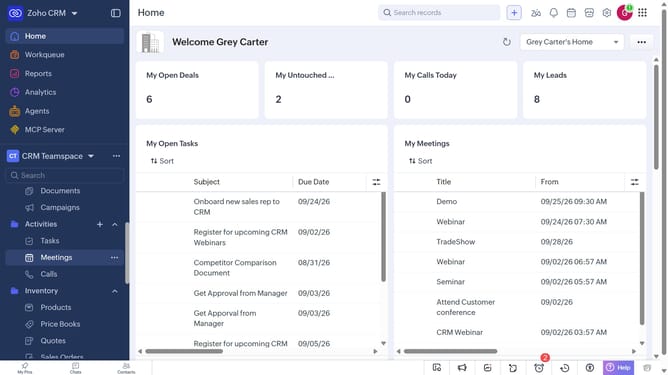
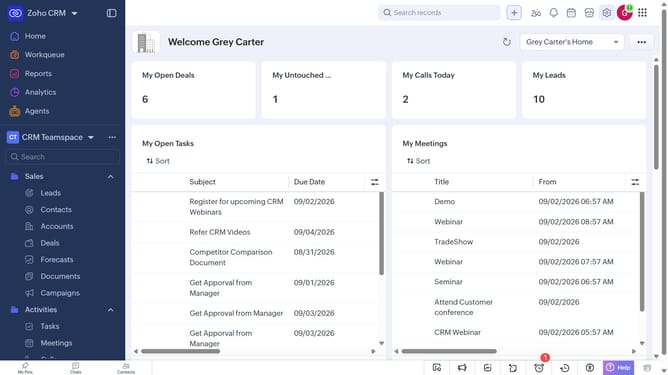
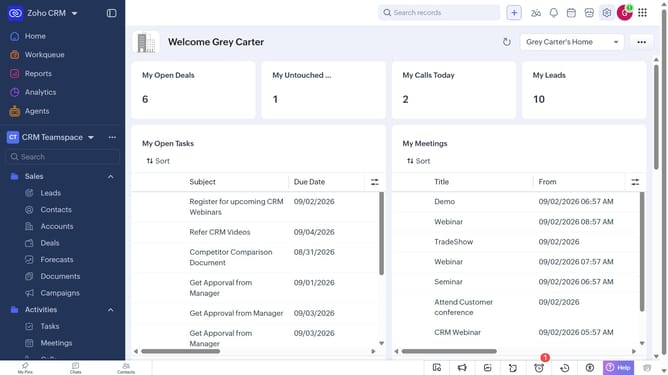
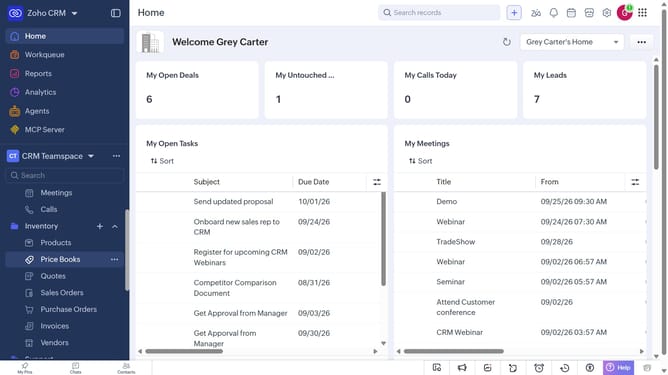
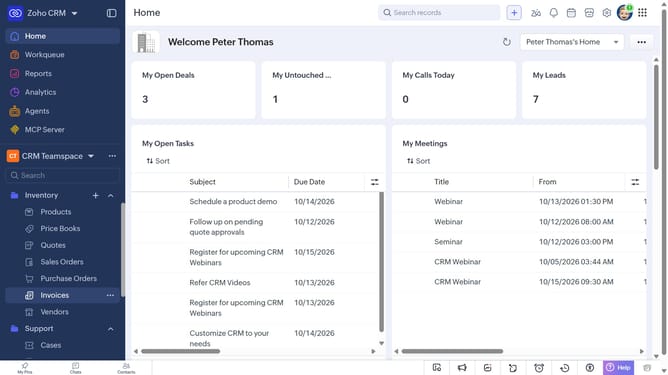
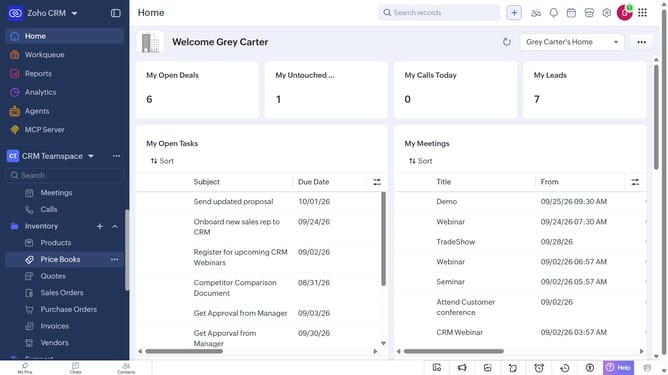
- First click on the settings icon in the top menu
- Next click on "Personal Settings" under the "General" section
- Click on the "Accessibility" tab
- After that, click on the "Vision" tab
- Then, locate the "Switch Labels" option
- Finally, turn off the toggle next to it
Why should you How to disable Switch Labels on Zoho CRM
Zoho CRM is a leading platform designed to streamline customer relationship management for businesses of all sizes.
The feature to disable Switch Labels in Zoho CRM offers users a cleaner and more focused interface. By turning off labels, you can reduce visual clutter, allowing team members to concentrate on essential data without distractions.
This streamlined view can enhance productivity by offering a simplified and intuitive experience. Utilizing this feature can lead to quicker decision-making and a more efficient workflow, ultimately benefiting the entire team.
Last update