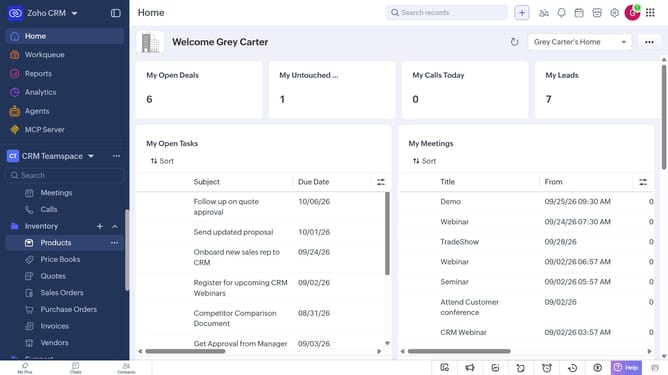
How to disable strikethrough for disabled buttons on Zoho CRM
Here is how to disable strikethrough for disabled buttons on zoho crm
- First click on the settings icon in the top menu
- Next click on "Personal Settings" under the "General" section
- Click on the "Accessibility" tab
- After that, click on the "Vision" tab
- Then, locate the "Strikethrough Disabled Buttons" option
- Finally, turn on the toggle next to it
Why should you How to disable strikethrough for disabled buttons on Zoho CRM
Zoho CRM is a comprehensive platform designed to streamline customer relationship management for businesses of all sizes.
A common design feature in Zoho CRM is the strikethrough effect on disabled buttons, which helps differentiate inactive options from active ones. However, for some users, this visual cue might be unnecessary or distracting.
Disabling the strikethrough on these buttons can lead to a cleaner interface that aligns better with your design preferences. This adjustment can help teams focus on more pertinent elements without the additional visual noise.
By tailoring your Zoho CRM experience in this way, you enhance usability and ensure that your interface supports rather than distracts from your core CRM activities.
Last update