How to disable keyboard shortcuts on Zoho CRM
Here is how to disable keyboard shortcuts on zoho crm
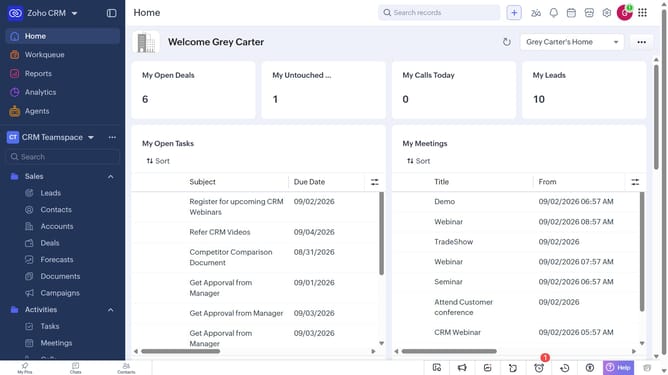
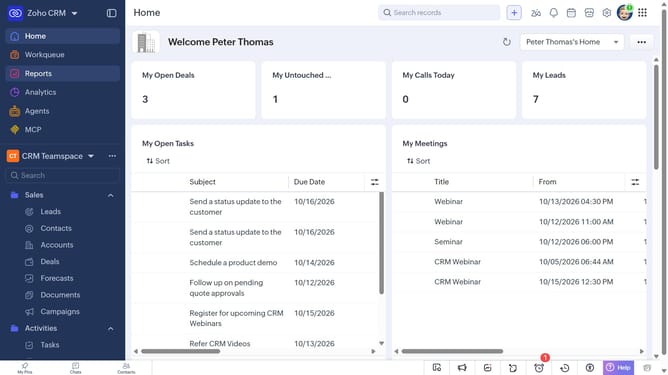
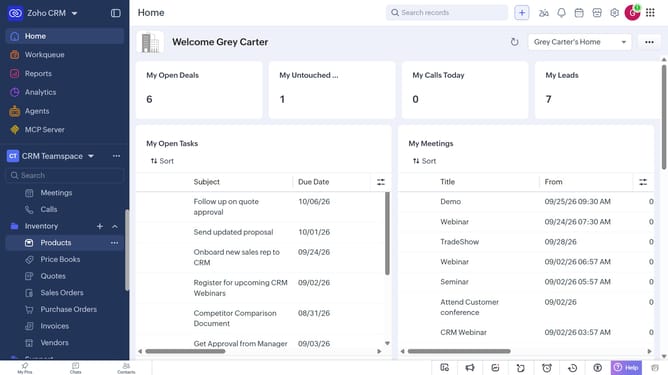
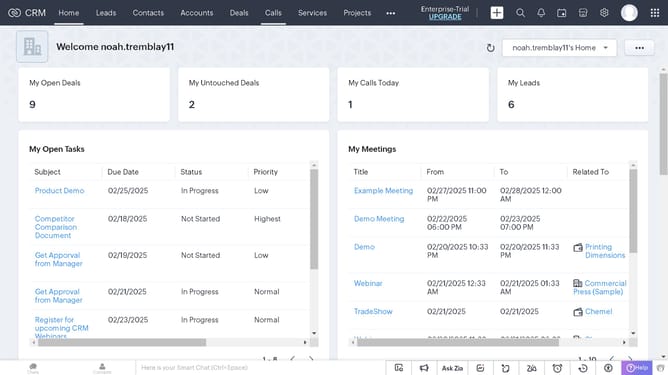
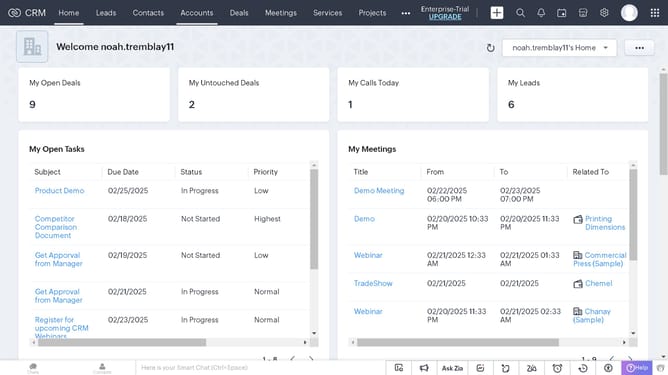
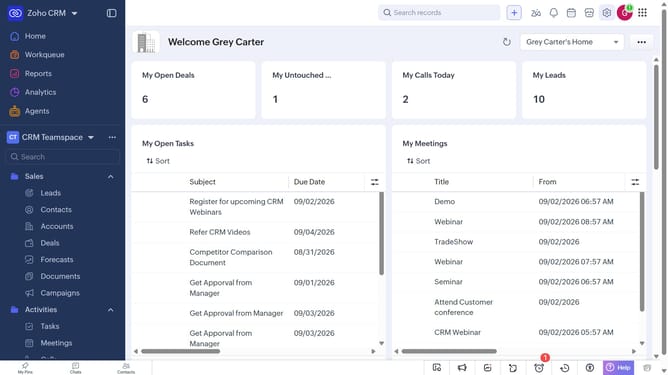
- First click on the settings icon in the top menu
- Next click on "Personal Settings" under the "General" section
- Click on the "Accessibility" tab
- After that, click on the "Motor" tab
- Then, locate the "Keyboard Shortcuts" section
- Finally, turn off the toggle next to it
Why should you How to disable keyboard shortcuts on Zoho CRM
Zoho CRM is a cutting-edge platform designed to streamline and enhance customer relationship management efforts.
For users who prefer a personalized workflow, Zoho CRM allows the disabling of keyboard shortcuts, tailoring the interface to specific user needs.
This feature can be especially beneficial in preventing accidental keystroke errors during data entry, ensuring accuracy.
By disabling shortcuts, users can focus more on their tasks without the interruptions of unintended commands, resulting in smoother operations and an improved user experience.
Last update