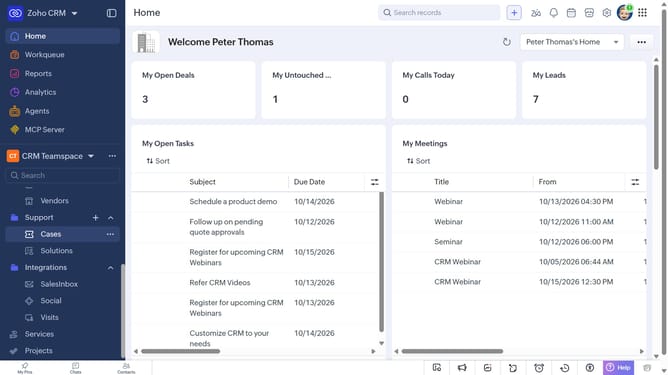
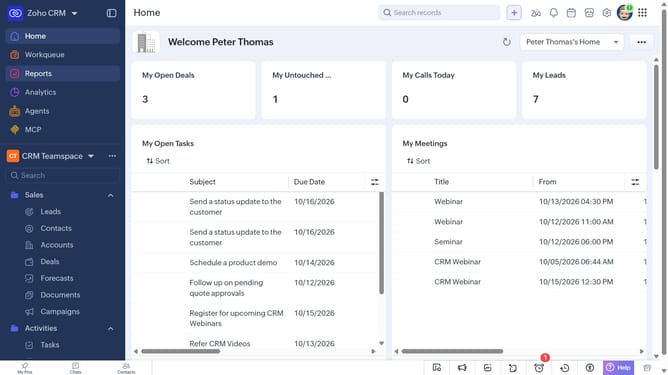
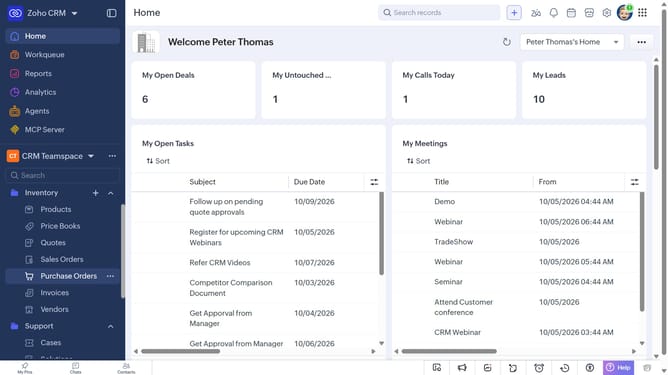
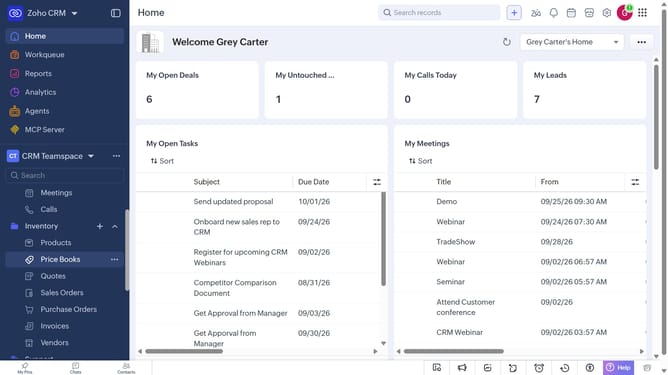
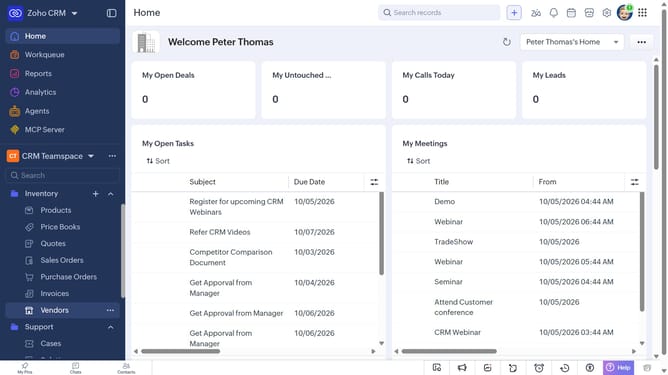
How to disable Flash Screen for Notifications on Zoho CRM
Here is how to disable flash screen for notifications on zoho crm
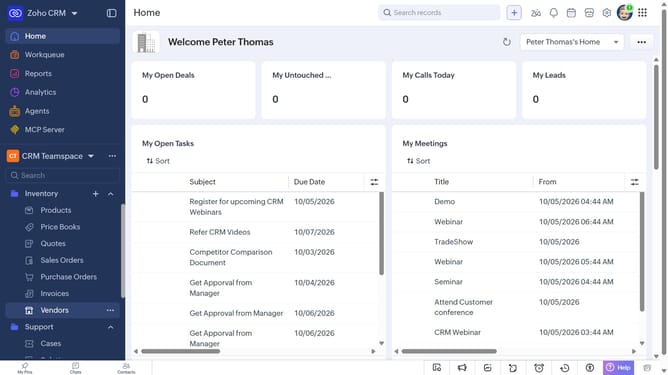
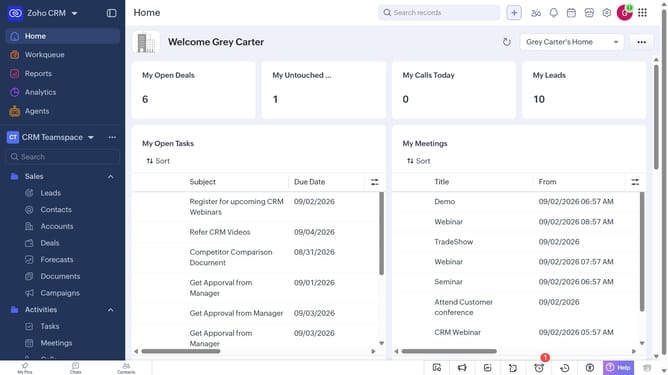
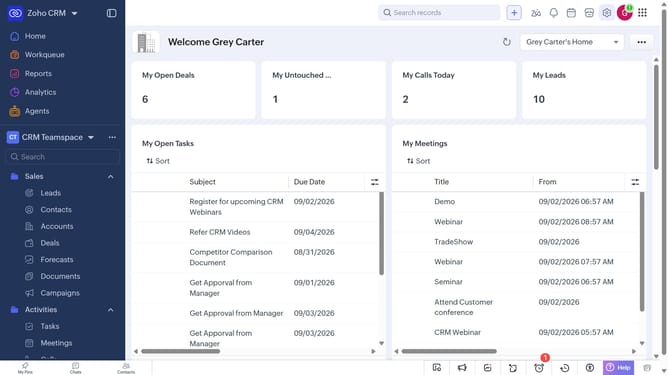
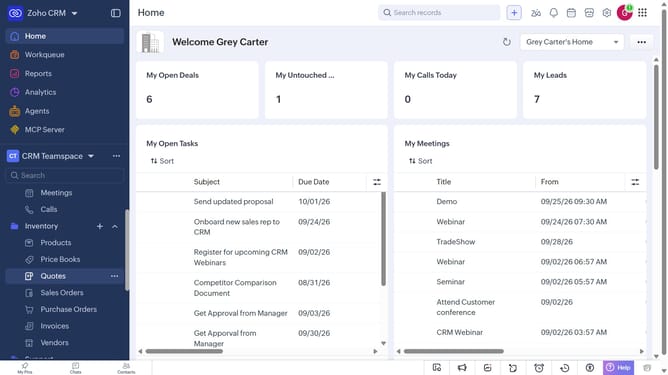
- First click on the settings icon in the top menu
- Next click on "Personal Settings" under the "General" section
- Click on the "Accessibility" tab
- After that, click on the "Vision" tab
- Then, locate the "Flash Screen for notifications" section
- Finally, turn off the toggle next to it
Why should you How to disable Flash Screen for Notifications on Zoho CRM
Zoho CRM is a powerful tool designed to streamline customer relationship management and enhance business efficiency.
For those seeking a quieter, more focused work environment, disabling the Flash Screen for Notifications on Zoho CRM can be a game-changer. This feature allows users to maintain concentration by reducing visual distractions that come from constant notification alerts.
By managing these alerts, you can ensure important tasks and client interactions receive your full attention, ultimately boosting productivity and improving the overall user experience.
Last update