How to add tags to a quote on Zoho CRM
Here is how to add tags to a quote on zoho crm
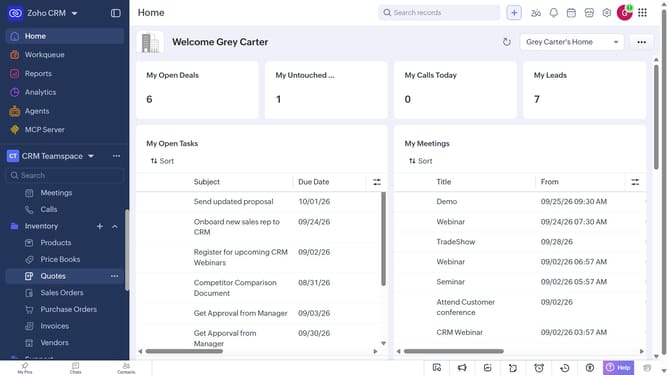
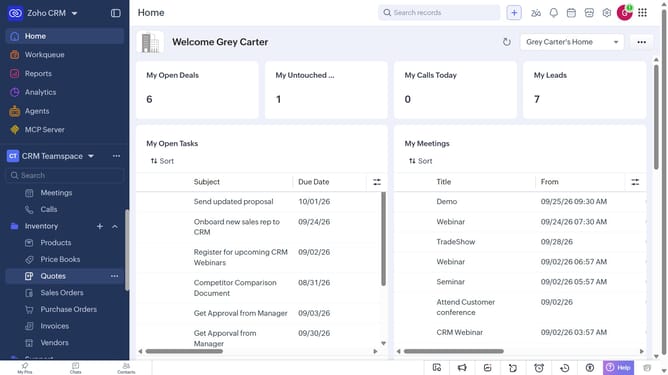
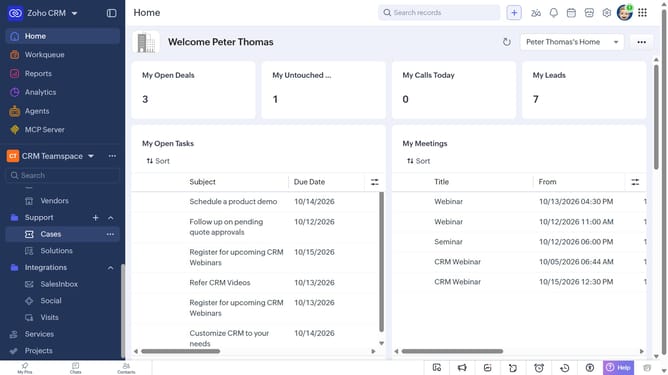
- First, click on "Quotes" under the "Inventory" section in the left sidebar menu
- Next, locate the quote you want to add tags to
- Click on the "More options" button next to the quote
- After that, select "Add Tags" from the dropdown menu
- Next, click on the "Enter Tags" field
- Then, choose from existing tags
- Another option is to enter the tag you want to add and press "Enter"
- Finally, click on the "Save" button
Why should you How to add tags to a quote on Zoho CRM
Zoho CRM is a powerful platform designed to streamline your business processes and enhance customer relationships.
Adding tags to a quote in Zoho CRM allows for efficient organization and retrieval of information. By categorizing quotes with relevant tags, you can quickly sort and filter through your data. This makes it easier to identify specific quotes based on criteria such as customer type, region, or product category.
Using tags enhances your team's productivity by reducing search time and ensuring that the relevant information is always at your fingertips. This feature helps in maintaining consistent data organization and improves decision-making by offering clear insights into your sales processes.
Last update