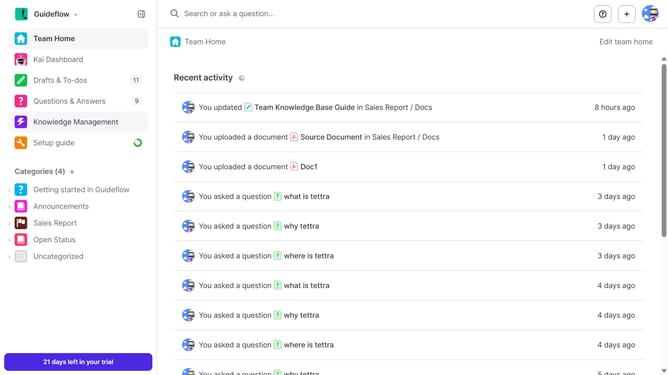
How to customize subcategory color on Tettra
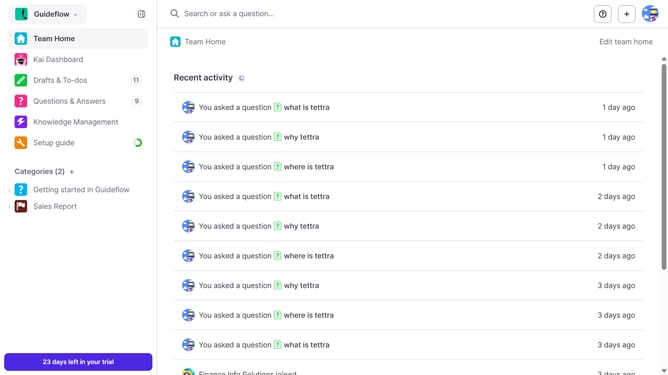
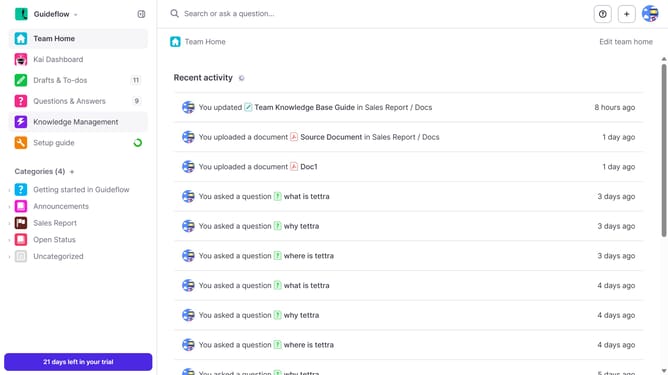
Here is how to customize subcategory color on tettra
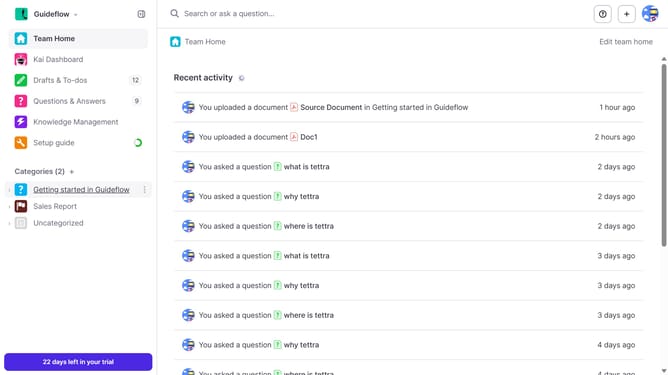
- First click on the three dots icon next to the sub category in the sidebar
- Then click on the "Edit" option in the revealed dropdown menu
- Next, click on the color swatch in the "Color" section
- Then select the new color from the swatch
- Finally click on the "Update subcategory" button again
Why should you How to customize subcategory color on Tettra
Tettra is an intuitive knowledge management tool designed to streamline team collaboration by organizing internal documentation effortlessly.
Customizing subcategory colors in Tettra allows teams to visually differentiate and categorize information quickly. By personalizing these hues, users can craft a more engaging and navigable workspace, enhancing focus and clarity.
This feature aids in quicker information retrieval, reducing cognitive load and boosting productivity. The visual cues help team members immediately hone in on the content they're seeking, fostering an efficient workflow.
Last update