How to create an image introduction on a survey in Mailchimp
Here is how to create an image introduction on a survey in mailchimp
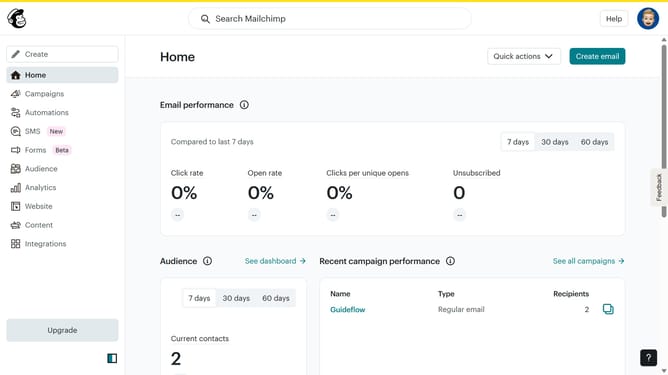
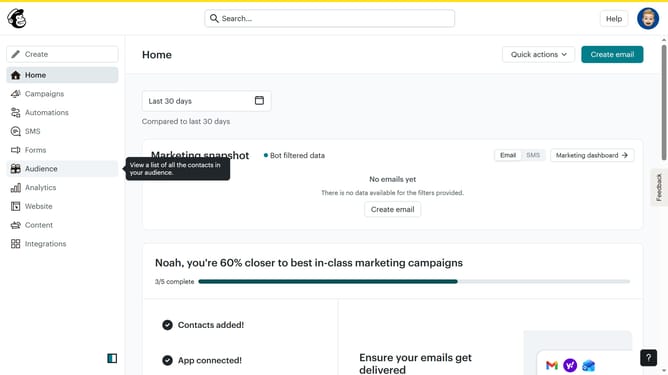
- First, click on the "Audience" item in the left sidebar menu
- Then, click on the "Surveys" item in the left sidebar menu
- Next, click on the "Create new survey" button
- After that, enter a name for your survey in the "Survey name" input field
- Then, click on the "Begin" button
- Click on the plus icon to add a new question
- Select "Introduction" as the question type
- Then, select "Image" as the next question type
- Click on the "Add" button
- After that, click on the "Upload image" button
- Next, click on the "Continue to design" button
- Then, click on the "Review" button
- Finally, click on the "Continue" button
Why should you create an image introduction on a survey in Mailchimp
Mailchimp is a versatile platform designed to streamline and enhance your marketing efforts.
In Mailchimp, adding an image introduction to a survey can make it more inviting and engaging for respondents.
Images can provide context, set the mood, or highlight brand identity, making the survey feel more personalized and relevant.
This feature not only grabs attention but also encourages participation, resulting in more insightful responses and ultimately a more successful feedback campaign.
Last update