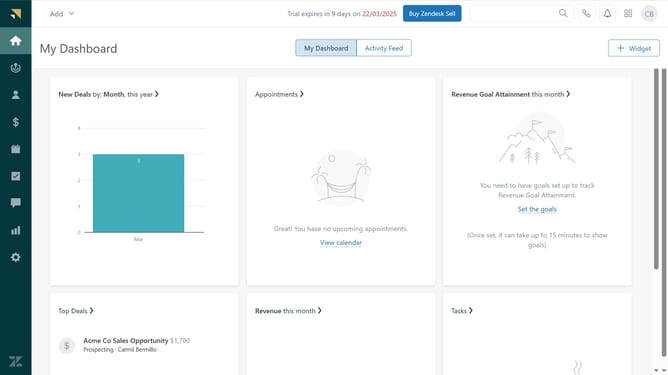
How to create a report from a dataset in Zendesk Explore
Here is how to create a report from a dataset in zendesk explore
- First in Zendesk Explore, click on "Datasets" icon in the left sidebar
- Then click on the dataset you want to create a report from
- Next click on "New report" button in the top right corner
- In the left sidebar, add Metrics, Columns, Rows, Explosions, and Filters as required for your report
- Next give a title for your report by clicking on the title field
- Then enter your desire title
- Finally, click on the "Save" button in the top right corner to save the new report
- You've successfully created a report from a dataset
Why should you create a report from a dataset in Zendesk Explore
Zendesk is a robust customer service platform designed to enhance and streamline support operations.
With Zendesk Explore, creating reports from a dataset is a seamless process that empowers businesses to gain deeper insights into their customer interactions. This feature allows you to transform raw data into visually appealing reports, making it easier for your team to identify trends and take action.
Using these tailored reports, organizations can make data-driven decisions that improve customer satisfaction and operational efficiency, ultimately leading to better strategic planning and resource allocation.
Last update