How to mark a category as a draft in Zendesk Guide Admin
Here is how to mark a category as a draft in zendesk guide admin
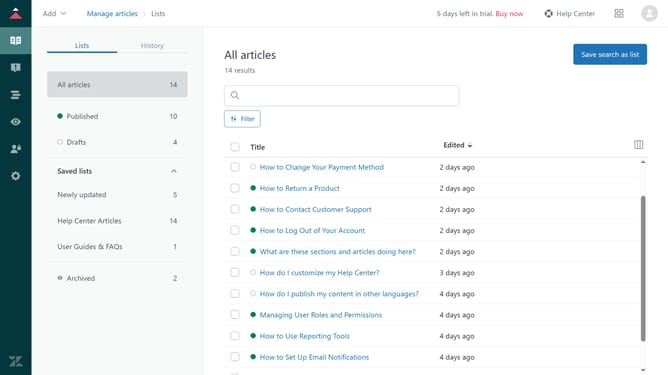
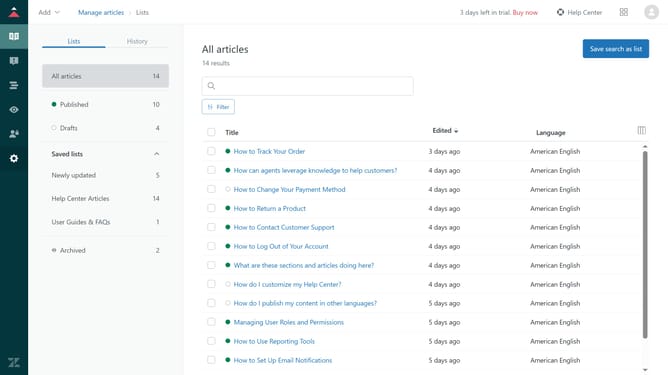
- First in Guide admin, click on the "Arrange content" icon in the left sidebar
- Then click on the menu icon (three dots) next to the category you want to mark as a draft
- Select "Edit category" from the dropdown menu
- Then click on the "Mark as draft" checkbox in the left sidebar
- Finally click on "Update" button in the top-right corner to apply the changes
Why should you mark a category as a draft in Zendesk Guide Admin
Zendesk is a comprehensive customer support platform designed to enhance customer service experiences.
In Zendesk Guide Admin, marking a category as a draft allows teams to refine content before it reaches the public. This feature ensures that articles and information are polished and accurate, providing users with reliable resources.
By utilizing drafts, administrators have the flexibility to make incremental improvements and maintain high standards of information quality, ultimately enhancing customer satisfaction.
Last update