How to connect Zoom to your Salesforce account
Here is how to connect zoom to your salesforce account
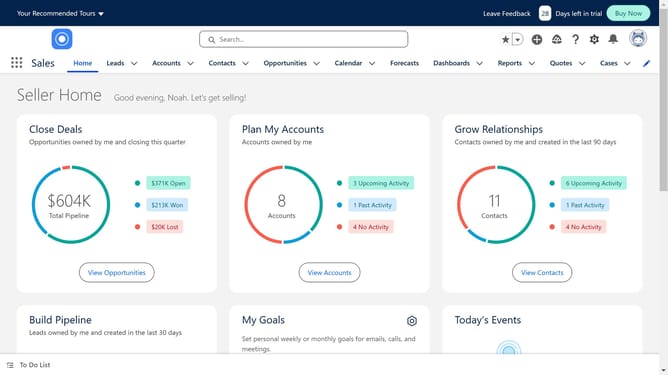
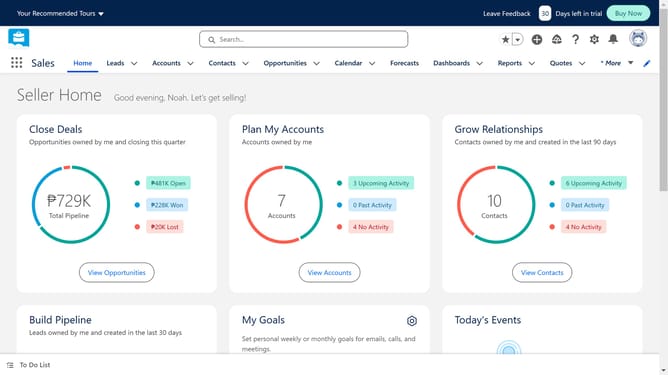
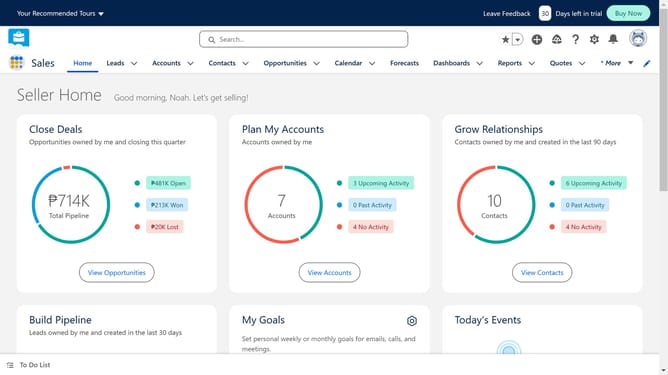
- First click on the search bar in the top header to search for apps
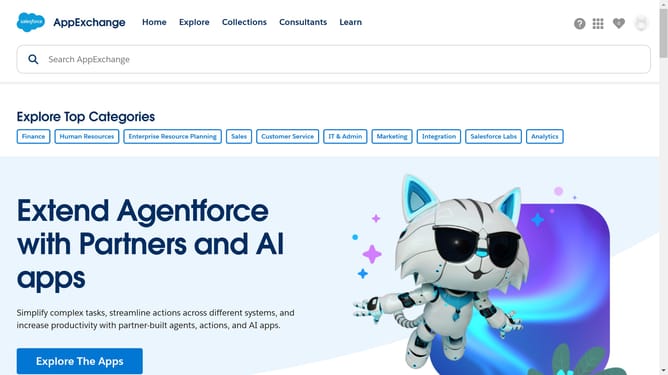
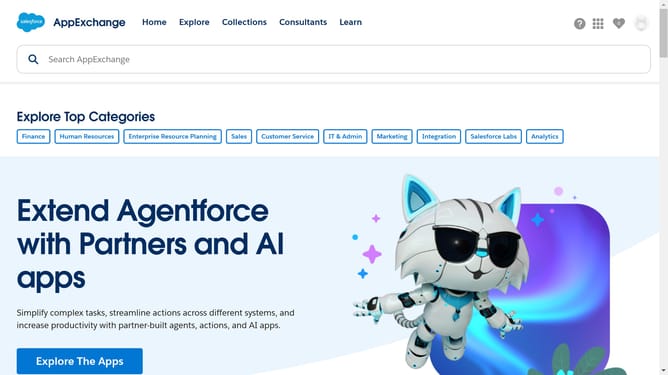
- Then type "zoom for salesforce" in the search field
- Click on the "Zoom for Salesforce Lightning" search result
- Click the "Add" button in the app details page
- Click the "Try It Free" button on the Salesforce AppExchange page
- Click on the "Try in your sandbox" option in the trial type selection
- Click on the "Continue to Installation" button
- Click on the "Log In & Install" button on the installation confirmation page
- Click on the "Use Custom Domain" link on the login page
- Click inside the custom domain input field
- Click on the "Continue" button after entering the custom domain
- Click on the "Install" button after choosing an installation option
- Click the checkbox to grant access to third-party websites
- Click the "Continue" button to approve third-party access
Why should you connect Zoom to your Salesforce account
Salesforce is a dynamic platform designed to streamline customer relationship management for businesses of all sizes.
Integrating Zoom with your Salesforce account enhances communication efficiency, allowing for seamless virtual meetings directly from Salesforce.
This connection centralizes meeting data, improving workflow and increasing productivity by reducing the need to switch between applications.
Ultimately, this integration supports improved collaboration and offers an elevated customer experience, leveraging the power of two essential tools.
Last update