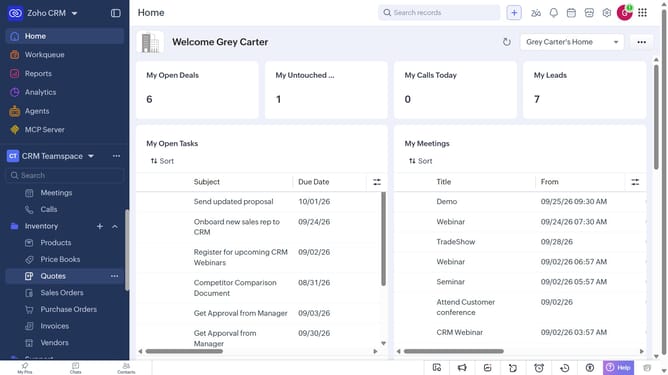
How to change the owner of a price book on Zoho CRM
Here is how to change the owner of a price book on zoho crm
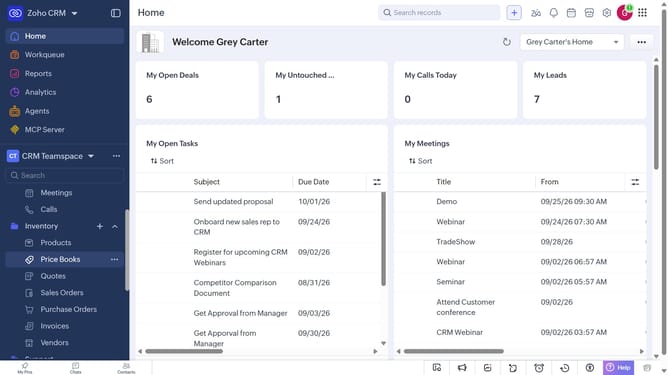
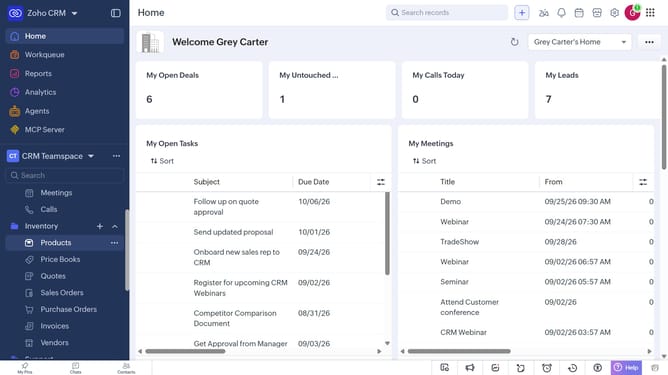
- First, click on "Price Books" under the "Inventory" section in the left sidebar menu
- Next, locate the price book whose owner you want to change
- Click on the "More options" button next to the price book
- After that, select "Change Owner" from the dropdown menu
- In the "Change Owner" modal, click on the dropdown
- Then select the new owner from the dropdown menu
- Next, check "Send Email notification" to enable alerts, or leave it unchecked
- Finally, click on the "Change Owner" button
Why should you How to change the owner of a price book on Zoho CRM
Zoho is a versatile platform tailored for businesses to enhance productivity and manage customer relations efficiently.
One powerful feature in Zoho CRM is the ability to change the owner of a price book, offering greater flexibility in managing sales data. This feature is particularly useful when roles within a team shift or responsibilities are redistributed.
By allowing a seamless transition of ownership, it ensures continuity and coherence in business processes. It simplifies collaboration across departments, enhancing team efficiency and ensuring that the most appropriate person is in control of key pricing information.
Last update