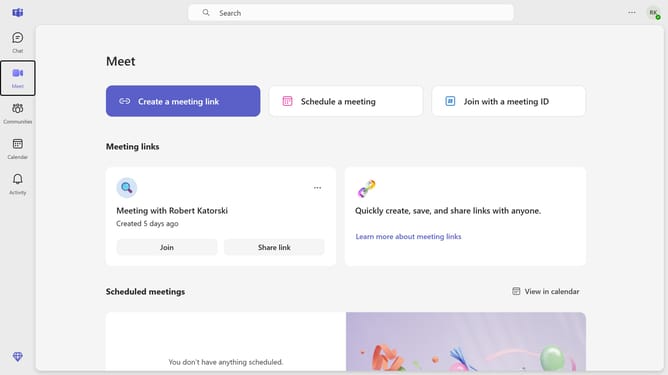
How to change the notification position to the top right in Microsoft Teams
Here is how to change the notification position to the top right in microsoft teams
- First click on the menu icon in the top-right corner of the application
- Then click on the "Settings" from the dropdown menu
- Click on "Notifications and activity" option in the settings menu
- Scroll down in the notifications settings
- Finally select "Top right" position option in the notification position settings
Why should you change the notification position to the top right in Microsoft Teams
Microsoft Teams is a dynamic platform for seamless collaboration and communication within organizations.
Customizing notifications in Microsoft Teams enhances user experience by allowing you to tailor alert placements to your preference.
Opting to position notifications at the top right corner of your screen ensures that important alerts are noticeable yet unobtrusive, supporting uninterrupted workflow.
This simple adjustment empowers productivity, enabling users to keep essential interactions within sight without overwhelming their digital space.
Last update