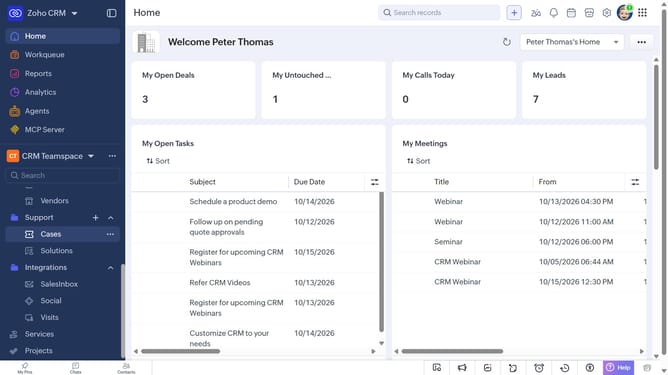
How to change the name of a group on Zoho CRM
Here is how to change the name of a group on zoho crm
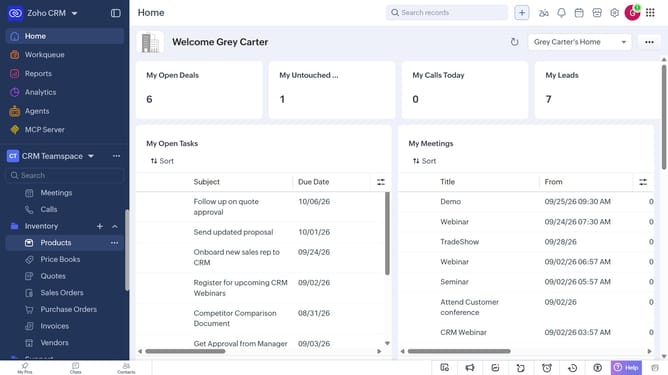
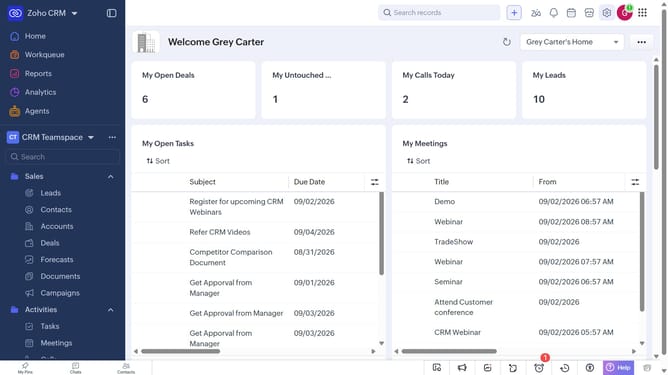
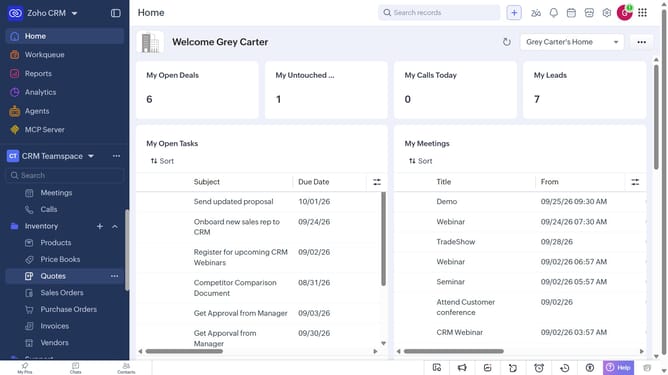
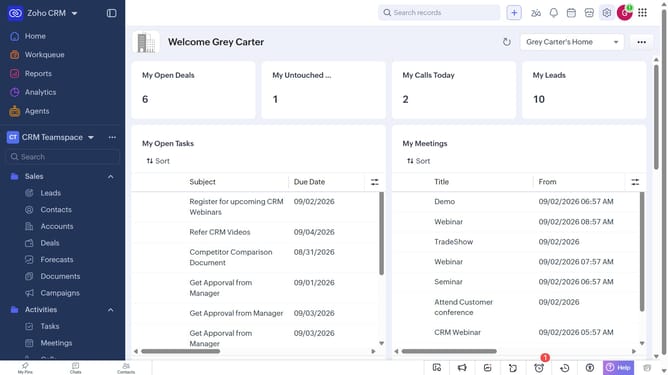
- First click on the settings icon in the top right corner
- Click on "Users" under the "General" section
- Next click on the "Groups" tab
- Locate the group you want to rename
- Next, click on the three dots menu that appears
- Then select "Rename" from the dropdown menu
- Enter the new name for the group in the modal
- Finally click on the "Save" button
Why should you How to change the name of a group on Zoho CRM
Zoho CRM is a powerful tool designed to streamline customer relationship management and boost business efficiency.
Changing the name of a group in Zoho CRM is an intuitive feature that enhances organization. This capability allows users to tailor group names to better reflect project specifics, team roles, or evolving business strategies.
Utilizing this feature ensures clarity and improves communication within the team. By aligning group names with current objectives or changes, it keeps the workflow fluid and minimizes confusion.
Ultimately, this adaptability supports a dynamic business environment where teams can swiftly respond to change.
Last update